


The Upwex Chrome extension is the core of the product – it injects AI widgets directly into Upwork pages so you can analyze jobs, generate cover letters and auto-bid without leaving the site. New to Upwex? Start with the getting started guide.
Install from the Chrome Web Store
- Open the Upwex – AI Tools for Upwork page on the Chrome Web Store.
- Click Add to Chrome.
- Confirm permissions in the popup – Upwex needs access to
upwork.compages and your Upwex account storage. - After installation, the Upwex icon appears in your browser toolbar (top-right corner, next to the address bar).

Pin the extension for easy access
- Click the puzzle piece icon in Chrome’s toolbar.
- Find Upwex in the list of installed extensions.
- Click the pin icon next to it – now the Upwex icon is always visible.

Sign in to the extension
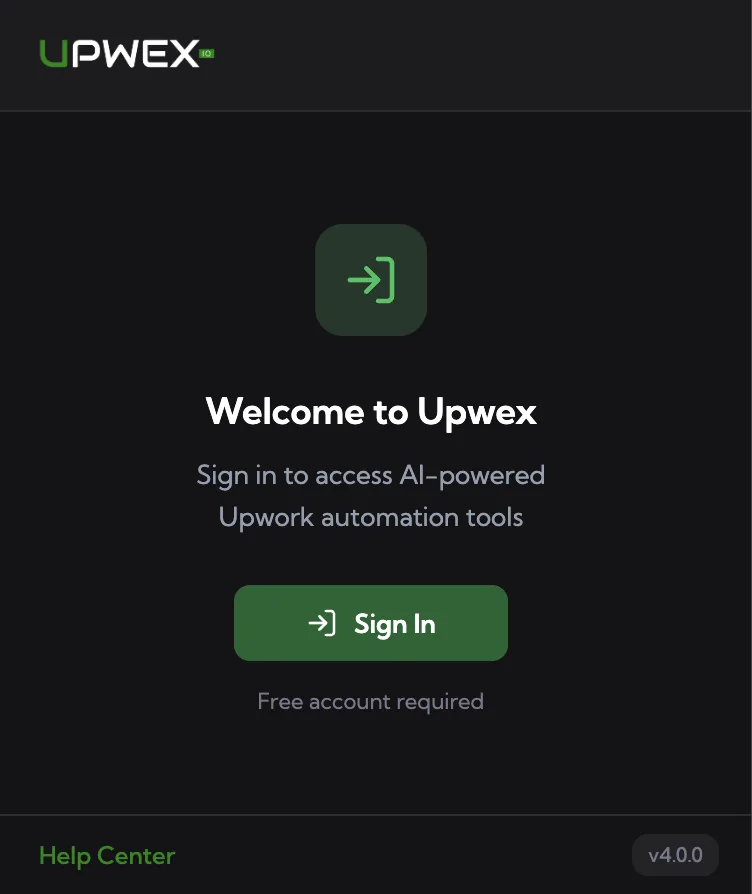
When you first click the Upwex icon, you’ll see a welcome screen with a Sign In button. Click it – Upwex opens account.upwex.io/login in a new tab.
- If you’re already logged in to Upwex in that tab, the extension authenticates automatically.
- If not, sign in as usual – tokens sync to the extension within a second.
Supported browsers
Upwex works on any Chromium-based browser: Google Chrome, Brave, Edge, Arc, Opera, Vivaldi. Firefox and Safari are not supported.