


The Auto-Bidding dashboard is where you check how Auto Bid is actually performing – not just whether it’s running. Open account.upwex.io/auto-bidding.
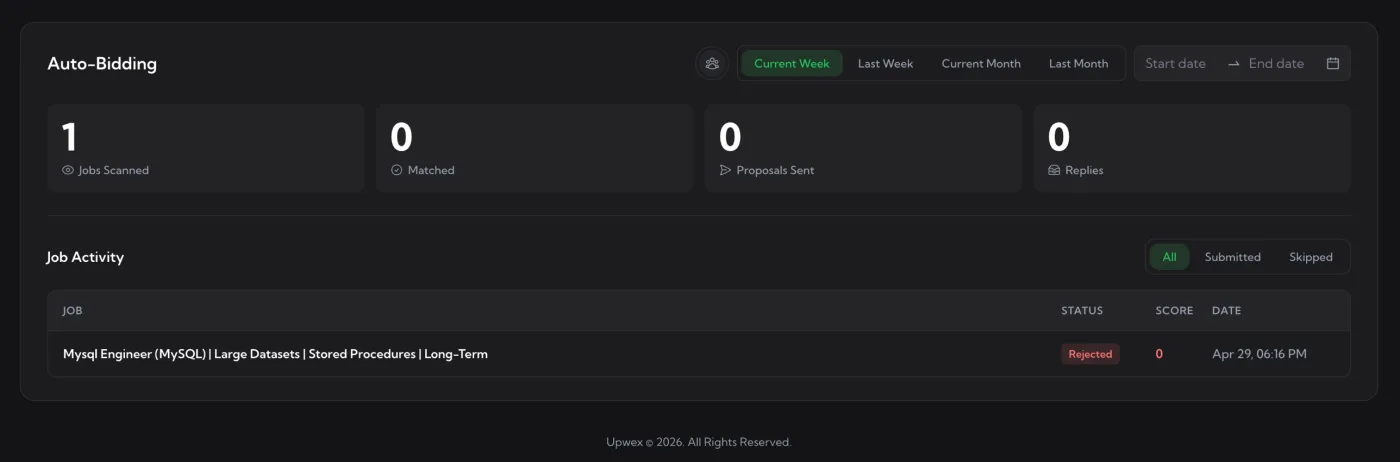
The header – period and user filters
- Current Week / Last Week / Current Month / Last Month – preset windows for stats and the table.
- Start date → End date – custom range picker.
- User picker (people icon) – Owners and Admins of a team can scope everything to a specific teammate.
Four stat cards
Big numbers at the top, summarising the selected period – your Auto Bid funnel from scan to reply:
- Jobs Scanned – total jobs Auto Bid opened and read.
- Matched – jobs that passed your filters and were queued for proposal generation. Pipeline stage, not a final state.
- Proposals Sent – proposals successfully submitted on Upwork.
- Replies – replies received from clients on those submissions; synced from Upwork in the background.
The funnel reads left-to-right: Scanned → Matched → Proposals Sent → Replies. Each number should be smaller than the previous one.
Job Activity table
Below the cards – every job Auto Bid touched, newest first. Columns:
- JOB – the job title.
- STATUS – colored status badge (Submitted, Rejected, Skipped, Failed, Matched, Scanned). See Understanding Auto Bid statuses for what each means.
- SCORE – Match Score 0–100, color-coded. Jobs that didn’t reach scoring show
–. - DATE – when Auto Bid touched the job.
Three filter tabs above the table:
- All – every status, no filtering.
- Submitted – only jobs with status
submitted. - Skipped – everything that didn’t result in a submission. Bundles
rejected,skipped,failed,matchedandscannedtogether so you can audit why jobs didn’t get bid on.
Job detail overlay
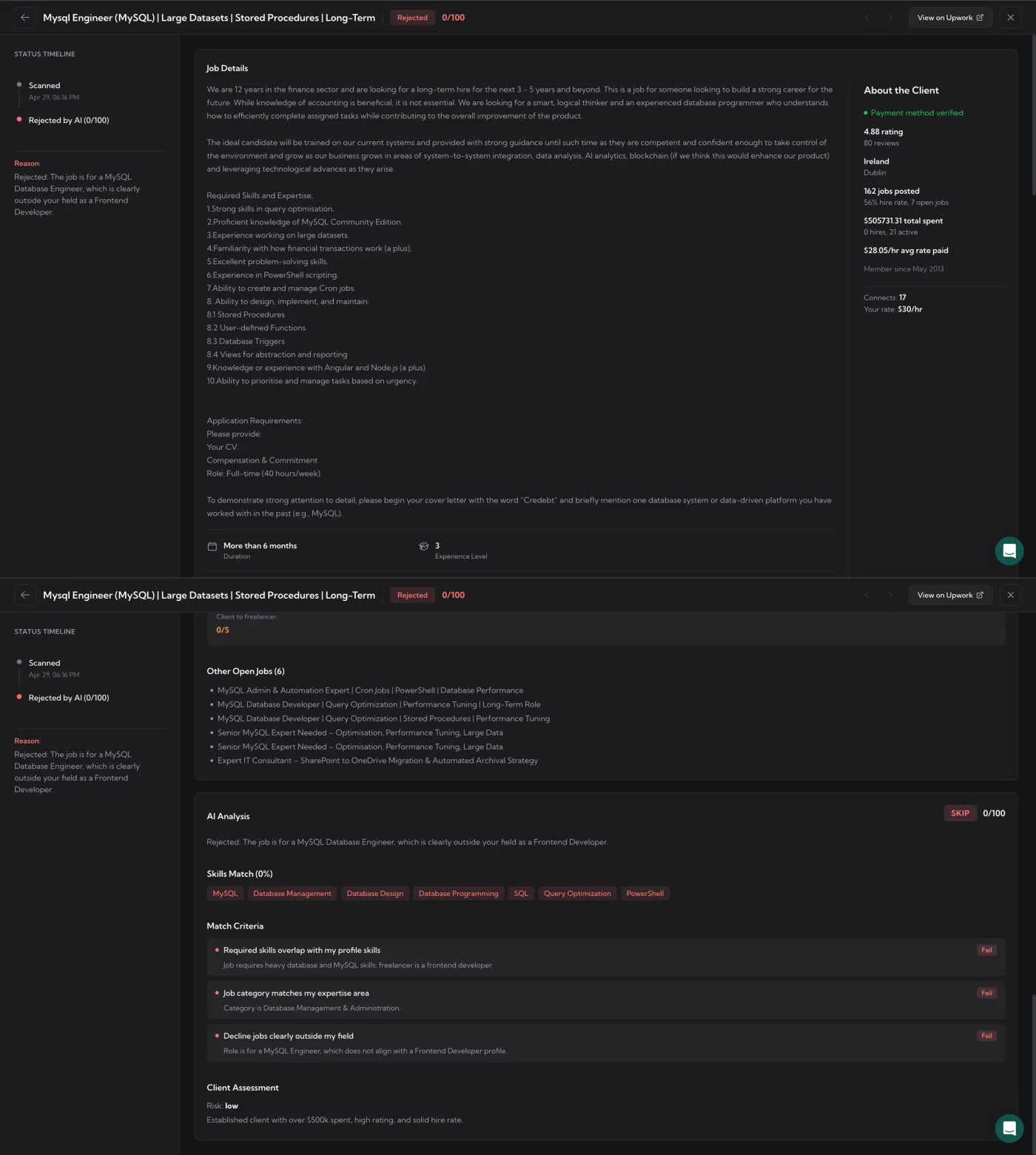
Click any row to open a full-screen overlay with the full audit trail for that job. The header shows the job title, the status badge, the Match Score (e.g. 0/100), arrows ← / → to step through jobs without closing, a View on Upwork link, and a × to close.
Left sidebar – STATUS TIMELINE
A vertical timeline showing each step the job went through with its timestamp (Scanned at HH:MM, Rejected by AI, Submitted, etc.). For Rejected/Failed/Skipped jobs, a Reason block underneath explains why in plain English (e.g. “Rejected: The job is for a MySQL Database Engineer, which is clearly outside your field as a Frontend Developer”).
Center – Job Details
Full job description as Upwork showed it: overview text, required skills and expertise, application requirements, project duration and experience level. Below that, Other Open Jobs (N) – a list of the client’s other currently-open postings, useful for spotting bigger opportunities.
AI Analysis
How AI evaluated this specific job:
- SKIP / SUBMIT badge + score – AI’s verdict and the numeric Match Score.
- Reasoning – one-sentence explanation of why AI made that call.
- Skills Match (X%) – required skills from the job posting tagged green/red depending on whether they overlap with your synced profile.
- Match Criteria – your Match Algorithm rules, evaluated one by one with a Pass or Fail badge and a short justification on each.
- Client Assessment – risk level (low / medium / high) with a short rationale based on the client’s payment verification, history and stats.
Right sidebar – About the Client
Compact stats card pulled from the Upwork job posting: payment verification status, rating + reviews count, country/city, jobs posted, hire rate, open jobs, total spent on Upwork, average rate paid, member-since date, Connects cost for the proposal, and your filled-in rate for this job.
How to read the dashboard
- Matched vs Proposals Sent gap – should be tiny. A big gap means submissions are failing often; open the Skipped tab and look for Failed rows to see why (out of credits, out of connects, rate limit).
- Skipped:Scanned ratio – most Scanned jobs ending in Skipped/Rejected is healthy; that’s your filters doing their job. If everything is rejected, your rules are too strict.
- Replies vs Proposals Sent – the only number that actually pays. If reply rate is low despite many submissions, the problem is in the cover letter template, not in Auto Bid. See Tracking Reply Rates & best practices.
- Open the worst-rejected ones. Click into Rejected rows where Match Score should arguably have been higher – the Reason and Match Criteria show you exactly which rule fired and let you decide whether to relax it.