


Every job that Auto Bid touches is recorded with a status – whether it was just scanned, accepted by your filters, submitted, skipped, or failed. The full activity is visible on the Auto-Bidding dashboard, where you can audit each run, see which filters fired, and tune your rules accordingly.
Where to find it
Open account.upwex.io/auto-bidding. The page has three blocks: stat cards at the top, period and user filters in the header, and a Job Activity table below.
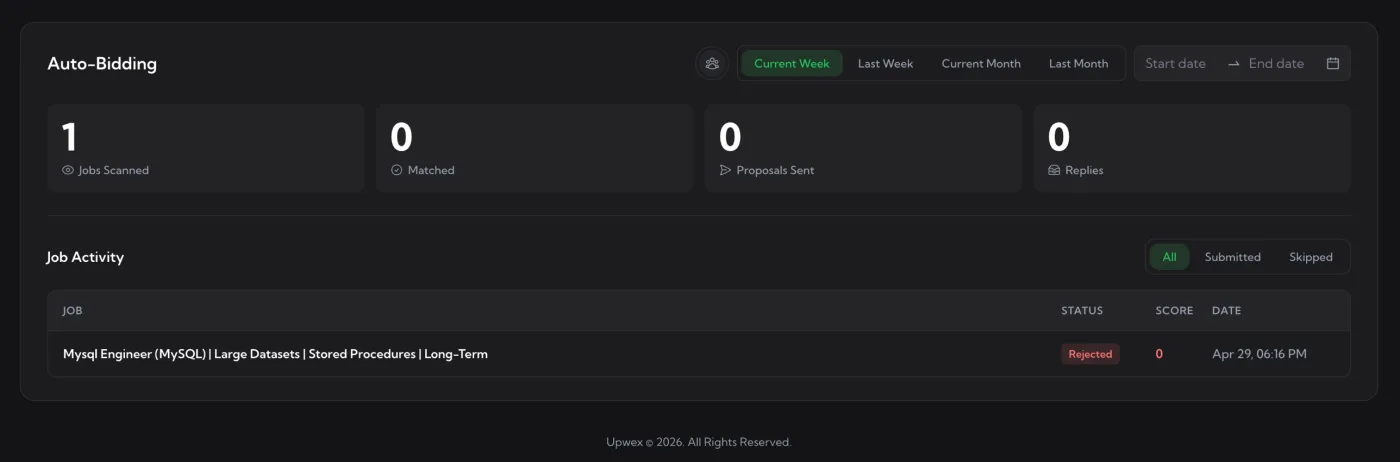
The four stat cards
- Jobs Scanned – total number of jobs Auto Bid opened and read in the selected period. Baseline counter for everything else.
- Matched – jobs that passed your filters and were queued for proposal generation. These are still in the pipeline; they only become Proposals Sent once the submission succeeds.
- Proposals Sent – jobs where the proposal was successfully submitted on Upwork. The “real output” of Auto Bid.
- Replies – replies received from clients on those submitted proposals. Synced from your Upwork inbox in the background.
Period and user filters
The header controls the time window for all four cards and the table:
- Current Week / Last Week / Current Month / Last Month – preset windows.
- Start date → End date – custom range picker.
- User picker (the people icon) – Owners and Admins of a team can scope stats to a specific teammate.
The six job statuses
Each job ends up in exactly one status. They show as colored badges in the STATUS column.
Scanned
Auto Bid opened the job page and extracted the data (title, description, budget, client info), but hadn’t yet finished evaluating it – usually because the run was stopped or the tab closed mid-way. This is the default state when nothing further happened.
Matched
The job passed Match Score and all your filters and was queued for proposal generation. If you see Matched rows that didn’t progress to Submitted, the run was probably stopped or the bidding tab closed before the proposal was filled in.
Submitted
Cover letter generated, proposal form filled, submit button clicked successfully. This is the success state – every Submitted row spent your connects and is now waiting for a reply.
Rejected
The job was scanned but did not pass one of your filters. The reason is stored alongside (Match Score below threshold, Red Flag triggered, fixed/hourly skipped, job too old, etc.) and shown in the row.
Rejection is a feature, not a bug – your rules are doing their job and saving connects.
Failed
Auto Bid tried to submit the proposal but something broke. Common causes:
- Out of AI credits
- Out of Upwork connects (or below the Stop on Low Connects threshold)
- Upwork rate-limited the submission
- Browser/proposal tab closed mid-submit
- Upwork rejected the submission server-side
Usually fixable – top up credits/connects, slow the Scan Interval, retry.
Skipped
Auto Bid intentionally passed over the job without fully evaluating it. Reasons include:
- You already submitted a proposal on this job earlier
- The job was closed or removed by Upwork while the run was active
- The job didn’t fit basic preconditions (e.g. Skip Fixed-Price toggle was on)
The SCORE column
The SCORE column shows the Match Score (0–100) AI calculated for the job. Jobs that were skipped or failed before scoring show – instead of a number. Color-coded so you can spot strong / weak matches at a glance.
Job Activity tabs
Three tabs above the table:
- All – every status, no filtering.
- Submitted – only jobs with status
submitted. - Skipped – everything that didn’t result in a submission. This bundle includes
rejected,skipped,failed,matched, andscannedrows together. Use this tab to audit why jobs didn’t get bid on.
Using statuses to tune your rules
- Many Rejected with “Match Score below threshold” → either your Min Match Score is too tight or your synced profile needs updating.
- Many Failed with “rate limit” → increase Scan Interval or lower Max Bids Per Day.
- Few Submitted vs many Matched → bidding is breaking before the form is filled – check AI credits and connect balance.
- Few Replies despite many Submitted → the cover letter template is the problem, not Auto Bid. See Tracking Reply Rates & best practices.