


Out of the box Auto Bid doesn’t bid on everything it sees – it follows the rules you set on the Settings page. Configure them once, and every Auto Bid run plus every Quick Apply uses the same configuration.
Where to configure
Open account.upwex.io/settings. The page is split into three big blocks: Auto-Bidding Templates at the top (the three template cards), Profile Highlights in the middle, and Auto-Bidding & Quick Apply below – six grouped sections for everything else. Click the green Save Settings button at the bottom after any change.
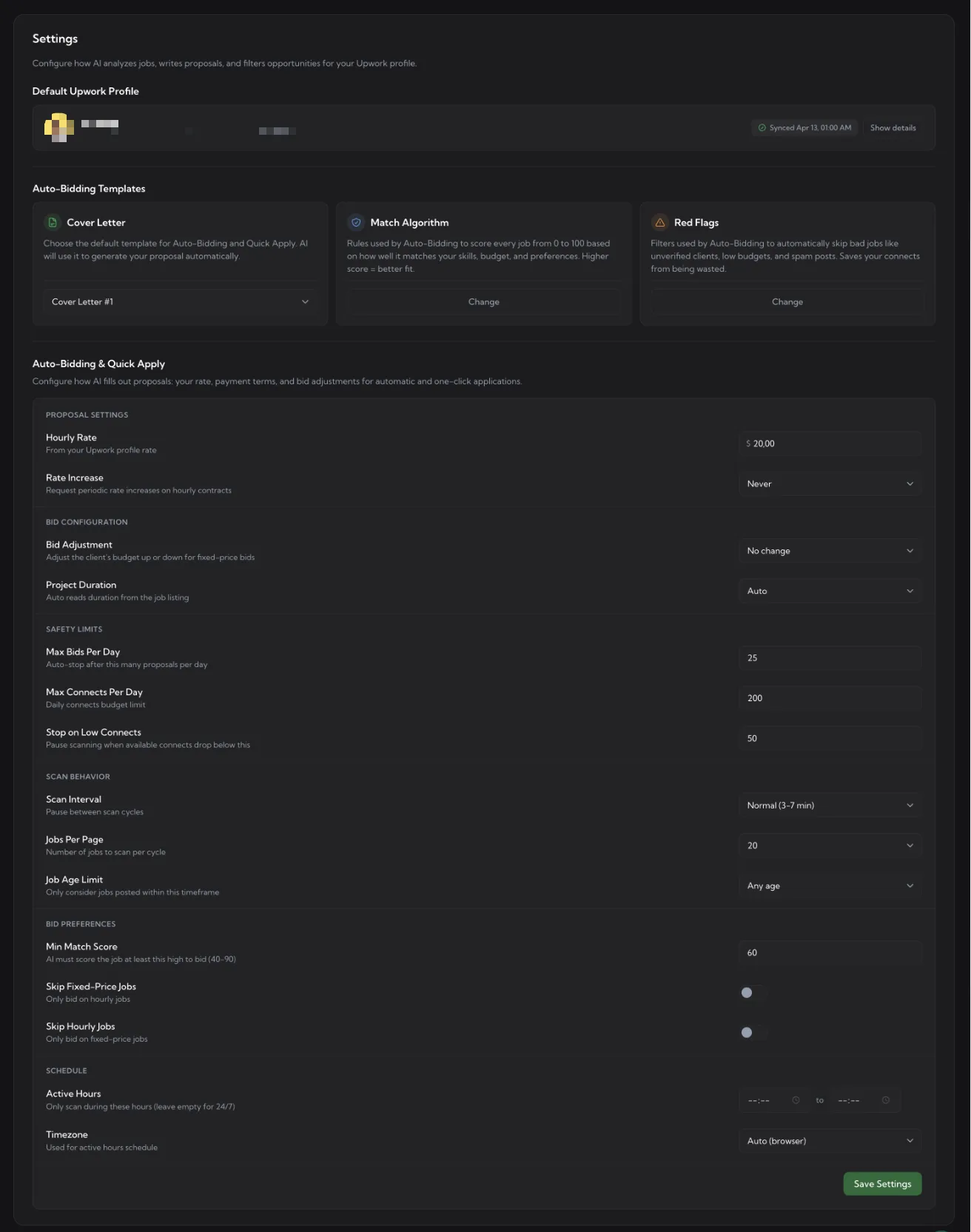
Default Upwork Profile
The profile Auto Bid bids from. Shows last sync timestamp and a Show details link for the profile data Upwex extracted. Sync the profile via the extension popup or the Profile Sync widget on Upwork – see Sync your Upwork profile.
Auto-Bidding Templates – three cards
The header strip with three cards controls what AI uses to evaluate and write each proposal:
- Cover Letter – the default template Auto Bid uses to generate every proposal. Pick one from the dropdown; you can edit templates on the Cover Letters page.
- Match Algorithm – the rules AI uses to score every job from 0 to 100 based on how well it matches your skills, budget and preferences. Click Change to edit. Higher score = better fit.
- Red Flags – filters that automatically skip bad jobs (unverified clients, low budgets, spam posts, etc.). Click Change to edit. Saves your connects from being wasted.
Profile Highlights
Attaches up to 4 items from your Upwork profile – completed jobs, portfolio projects, or certificates – to every proposal, the same way you would add them by hand in Upwork’s proposal form. Applied during Autocomplete, Manual Auto Bid, and Auto-Bidding. Available on Flex and during the free trial.
- Off – default, nothing is added.
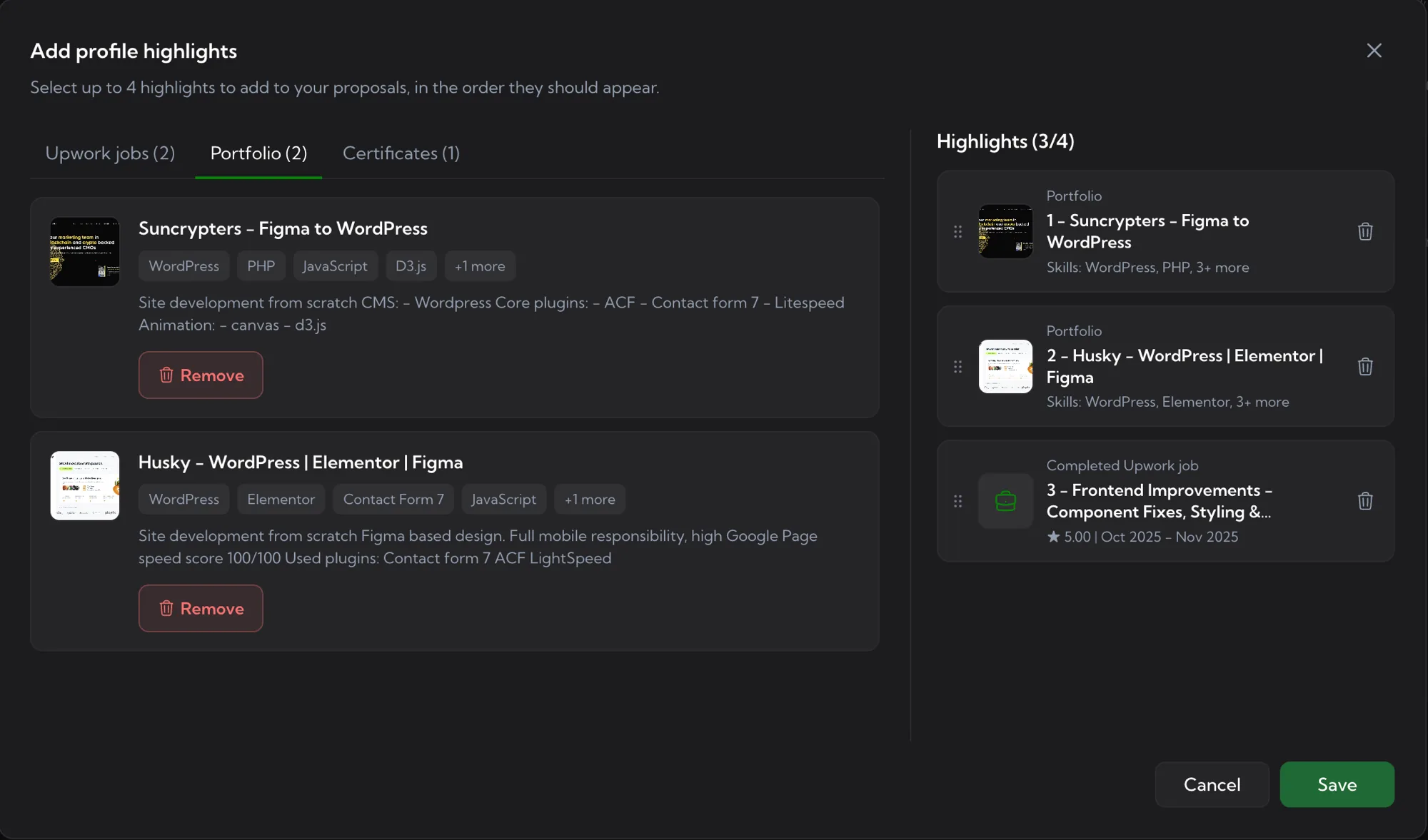
- Manual – you curate the list yourself. Click Select highlights, pick items in the Upwork jobs / Portfolio / Certificates tabs (up to 4 total), and drag to reorder – proposals include them in exactly this order.
- Auto (AI) – AI analyzes each job and picks the most relevant highlights from your profile automatically. Costs 1 additional AI credit per proposal, on top of the proposal generation itself.
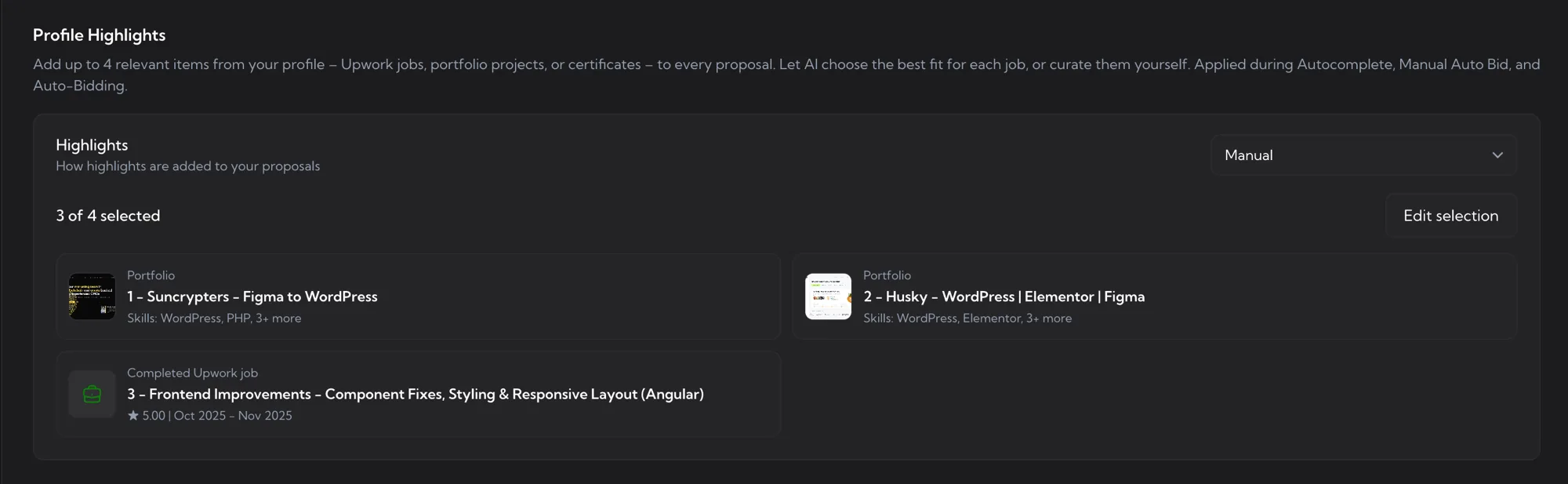
The mode selector stays disabled with a “No highlights available yet” notice until Upwex has highlight data for your profile. Even if your profile is already synced, do a fresh re-sync: open your Upwork freelancer profile with the extension active and click Update Profile – see Sync your Upwork profile. If a selected item later disappears from your Upwork profile, it is marked Unavailable and silently skipped when bidding.
Proposal Settings
- Hourly Rate – defaults to your Upwork profile rate. AI uses this when filling the rate field on hourly jobs.
- Rate Increase – request periodic rate increases on hourly contracts. Default Never; pick a cadence if you want AI to negotiate raises.
Bid Configuration
- Bid Adjustment – for fixed-price jobs, adjust the client’s budget up or down by a percentage when filling out the bid amount. Default No change.
- Project Duration – what to put in the duration field. Default Auto reads the duration from the job listing; otherwise pick a fixed value.
Safety Limits
- Max Bids Per Day – Auto Bid auto-stops after this many proposals in a 24-hour window. Default 25.
- Max Connects Per Day – daily connects budget. Default 200.
- Stop on Low Connects – pause scanning when your Upwork connects balance drops below this number. Default 50 – leaves a buffer so you don’t run dry mid-day.
Scan Behavior
- Scan Interval – pause between scan cycles. Options like Normal (3–7 min); longer intervals look more human and reduce rate-limit risk.
- Jobs Per Page – how many jobs Auto Bid scans per cycle. Default 20.
- Job Age Limit – only consider jobs posted within this timeframe. Default Any age; tighten to “last hour” or similar to compete only on fresh listings.
Bid Preferences
- Min Match Score – AI must score the job at least this high to bid (range 40–90, default 60). The single most important rule. Higher = more selective. ~70 = conservative, ~60 = balanced, ~50 = aggressive volume.
- Skip Fixed-Price Jobs – toggle. ON = only bid on hourly jobs.
- Skip Hourly Jobs – toggle. ON = only bid on fixed-price jobs.
Don’t enable both Skip toggles at once – you’d skip everything.
Schedule
- Active Hours – only scan during this time-of-day window. Leave both fields empty for 24/7.
- Timezone – used to interpret Active Hours. Default Auto (browser) picks up your computer’s timezone.
Save Settings
Click the green Save Settings button at the bottom of the page after any change. Settings apply to every subsequent Auto Bid run and Quick Apply submission.