


The Upwex popup is what opens when you click the Upwex icon in your Chrome toolbar. It’s the small control panel for the extension – sign in, see your plan and AI credits, switch / sync Upwork profiles, launch a queued Auto Bid run and jump into your Upwex dashboard.
Signed-out state – Auth card
When you’re not signed in, the popup shows a single Welcome to Upwex card with a Sign In button (Free account required). The button opens account.upwex.io/login in a new tab – see the Install the Chrome extension article for the full sign-in flow.
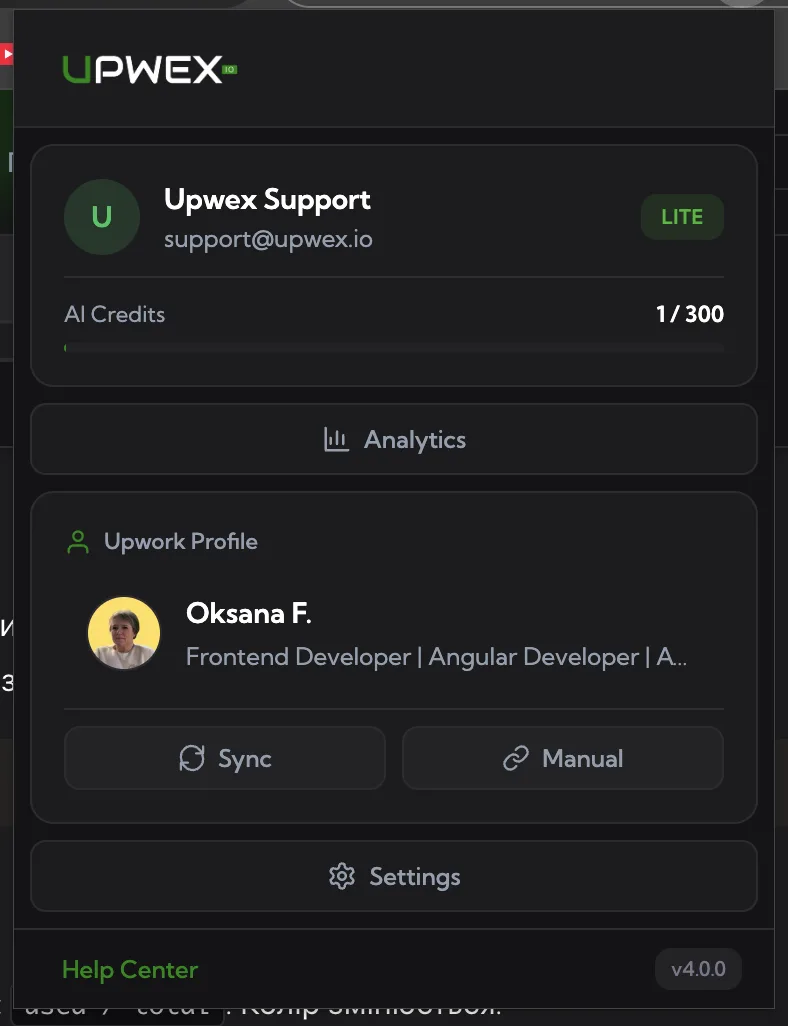
Signed-in state – User card
Once you’re signed in, the auth card is replaced by a user card with:
- Avatar, name, email from your Upwex account
- Plan badge – shows your current plan (Flex, or your older plan if you haven’t switched yet)
- Trial badge – appears while your free trial is active and shows the remaining days (e.g.
TRIAL: 5 days left). Once the trial ends, the badge changes to the plan badge of whatever plan you picked.
AI Credits progress bar
Right under the user info there’s a horizontal bar with the label AI Credits and the count used / total. The fill colour reflects how close you are to the cap:
- Green – under 80% used
- Yellow – at or above 80% used (heads-up that you’re close to running out)
- Red – credits are exhausted; buy an extra credit pack with Top Up on the AI Credits page or wait for the monthly reset
Ready to Launch hero card
When Auto Bid is in the Almost there… state – meaning you’ve clicked Confirm & Continue in the widget on an Upwork search page but haven’t yet launched the run – a green Ready to Launch hero card appears at the top of the popup, above the user card.
The card shows a pulsing lightning bolt icon, the title Ready to Launch, the active Upwork profile name underneath, and a green Start Auto-Bid button. Click the button to attach the tab capture keepalive to the search tab and start scanning. The popup closes automatically and the widget on the Upwork page transitions to the running state.
If no Auto Bid run is queued, the hero card is hidden – the popup just shows the user card, Analytics button and profile section as usual.
Analytics button
Opens your Upwex dashboard at account.upwex.io/dashboard in a new tab – shortcut to your bidding analytics without navigating through the address bar.
Upwork Profile section
This card lists your synced Upwork profiles and lets you keep them current:
- Profile dropdown – click the selected profile to expand the list of synced profiles and switch the active one. The selected profile is what Upwex uses for cover letters and Auto Bid.
- Sync – pulls the latest data for the currently active profile (Upwex opens your profile page in the background and re-reads it).
- Manual – toggles a URL field where you can paste any Upwork freelancer URL (
https://www.upwork.com/freelancers/~...) to sync that profile. Useful for adding agency members or syncing a profile other than the one you’re logged in with.
Settings button
Opens account.upwex.io/settings in a new tab – that’s where you edit your default Cover Letter Template, Match Algorithm and Red Flag rules used by Auto Bid.
Footer
At the bottom of the popup:
- Help Center link – takes you to
help.upwex.io - Version badge – the installed extension version, handy when reporting issues to support