


The ALL TEMPLATES section on the Cover Letters page lists every cover letter template in your account. One template is always marked as DEFAULT – that’s the one the widget pre-selects when you open a job on Upwork. The list also lets you set the default, edit, duplicate or delete any template directly from a row.
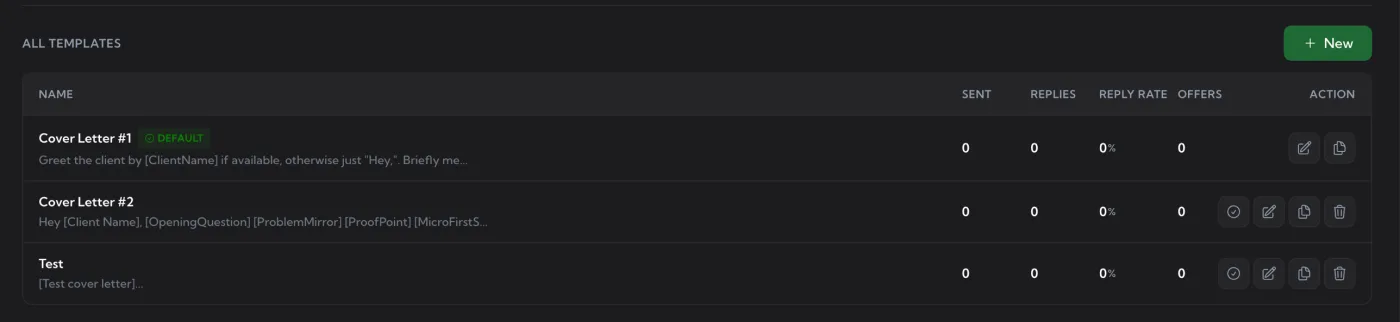
Anatomy of the list
- + New button at the top right – opens the Template Editor to create a new template.
- NAME column – template name with a one-line preview of the body underneath.
- SENT / REPLIES / REPLY RATE / OFFERS – usage stats for the period selected in the page header.
- ACTION – the per-row icons described below.
The DEFAULT badge
Exactly one template at a time carries the green DEFAULT badge next to its name. That template is the one the Cover Letter widget pre-selects on every Upwork job – saving you a click. You can still pick a different template from the dropdown when generating; DEFAULT is just the starting point.
Per-row actions
- ✓ Set as default – switches the DEFAULT badge to this template. Visible only on non-default rows.
- ✏ Edit – opens the template in the Template Editor.
- 📄 Duplicate – creates a copy of the template with a new name. Useful for testing variants without losing the original’s stats.
- 🗑 Delete – removes the template after a confirmation prompt. Historical stats for the deleted template are lost.
Why the DEFAULT can’t be deleted
The current default template is locked from deletion – its row only shows Edit and Duplicate. This prevents you from accidentally leaving the widget without a starter template. To delete it, first promote another template by clicking ✓ on its row – the badge moves over and the previous default becomes deletable.
Stats columns
The four stats columns make it easy to compare templates and see which ones actually convert:
- SENT – proposals submitted using this template in the selected period.
- REPLIES – replies received on those proposals.
- REPLY RATE – REPLIES ÷ SENT, as a percentage.
- OFFERS – replies that turned into hire offers.
Use the period switcher in the page header (Current Week / Last Week / Current Month / Last Month / custom range) to slice the numbers.
Tips
- Keep DEFAULT on your strongest converter – it’s what the widget reaches for first.
- Duplicate before tweaking. If you change the body of a template that already has stats, the numbers stop being a clean comparison. Duplicate, edit the copy, and let it accumulate its own data.
- Clean up regularly. Templates you’ve stopped using add noise. Delete them once you’re confident a newer version performs better.