


In Upwex a seat (sometimes called a license) is what entitles one team member to use the paid features of your plan. Seats are managed automatically – there is no separate “Assign License” / “Unassign License” action on the Team page. You add a seat by inviting someone, and you free a seat by removing them – a model built for agencies whose teams change often.
How seats are added – invite
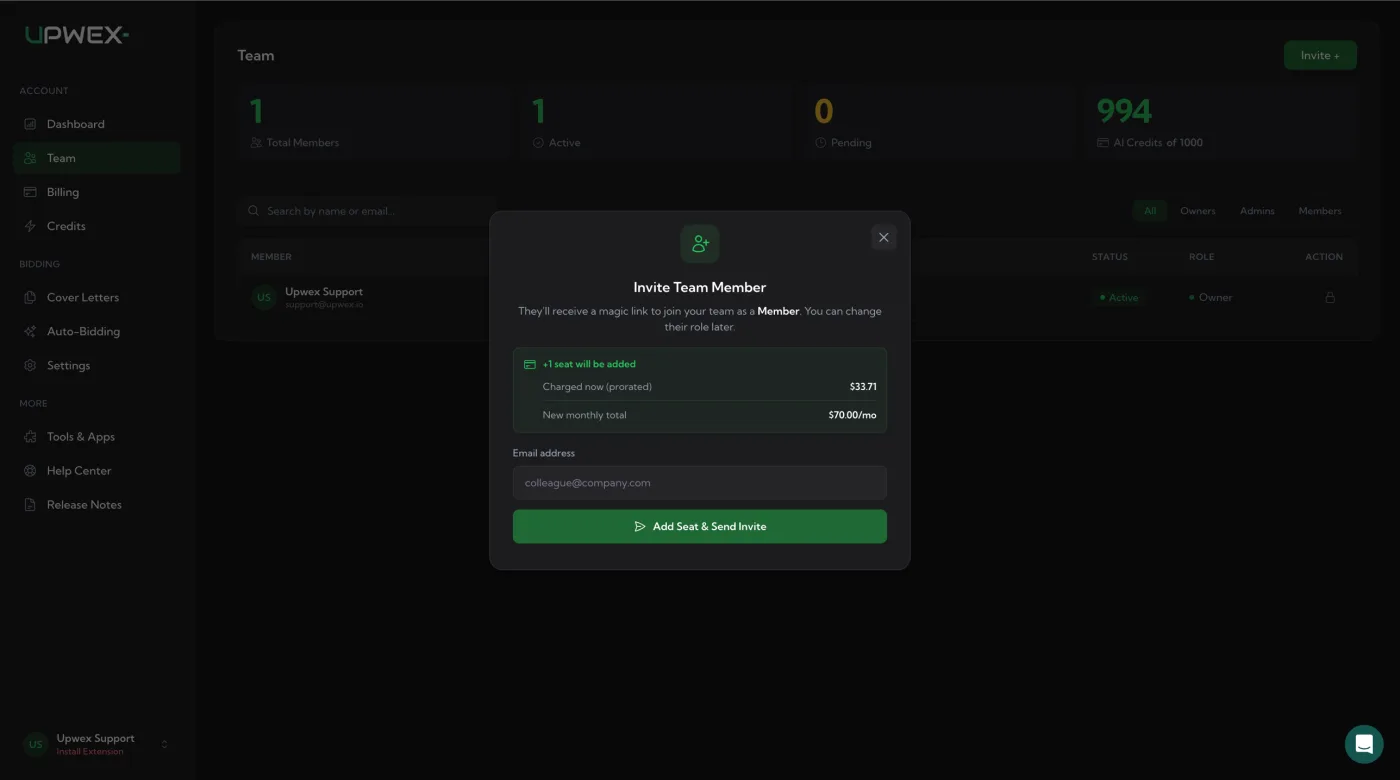
When an Owner or Admin invites someone via Invite + on the Team page:
- Upwex checks whether your plan still has free seats. If not, it expands your subscription by one seat.
- The seat is reserved immediately, before the invitee accepts.
- Your subscription is charged a prorated amount for the days remaining in the current billing cycle (shown in the modal as Charged now (prorated)).
- The new monthly total is shown as New monthly total – that’s what you’ll pay from the next renewal.
Pending invites still occupy a seat and count toward your monthly total – same as Active members. See Invite a team member.
How seats are released – remove
When you remove a member from the Team page (⋮ menu → Remove):
- The seat is released back to the pool.
- If the member was paid, your subscription seat count is reduced by 1 with prorated credit applied at the next invoice.
- The monthly total decreases starting from the next renewal.
Cancelling a Pending invite frees its seat the same way – see Remove a team member.
Status column meanings
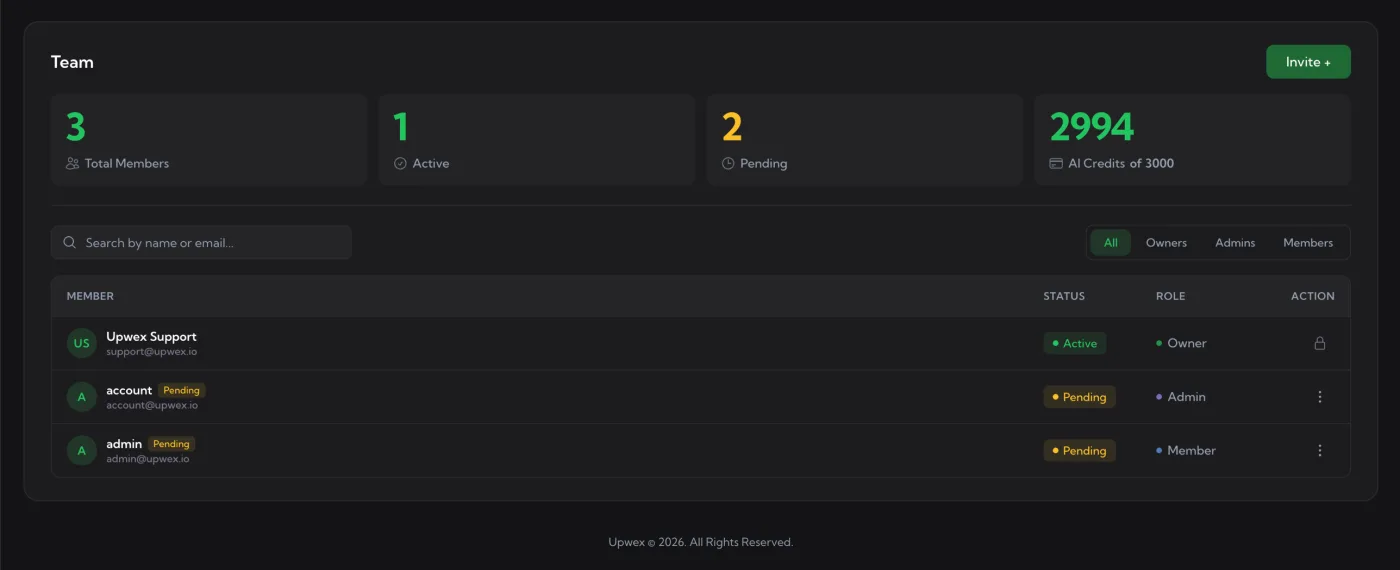
The STATUS column on the Team page shows the seat / subscription state for each member:
- Active (green) – paid seat, member can use all features
- Pending (yellow) – invite sent, seat reserved, awaiting acceptance
- Trial (blue) – member is covered by an active trial; seat free during the trial period
- Past Due (orange) – subscription payment failed; resolve in the Billing page
- Canceled (grey) – subscription was cancelled; member loses paid features at the end of the cycle
- No Plan (grey) – no active subscription; only the Owner has limited free access
Where to see your seat usage
The four stat cards at the top of the Team page give you the live count:
- Total Members – every seat (Active + Pending)
- Active – seats that have accepted the invite
- Pending – seats reserved by invites that haven’t been accepted yet
- AI Credits – X of Y – the team’s shared monthly AI Credit pool: 50 credits per seat, so it grows with every seat you add
Prorated billing – at a glance
- Adding a seat mid-cycle = prorated charge for the days that are left.
- Removing a seat mid-cycle = prorated credit applied to your next invoice.
- The new monthly total takes effect from the next renewal date.
- You can scale your team up or down at any time without waste.
Seat price and credits
Upwex has one plan, Flex, and every seat costs the same: $7.99 per seat per month, or $89.99 per seat per year on yearly billing. Tax may be added depending on your location. Every seat gets every Upwex feature and adds 50 AI Credits a month to one pool the whole team shares – for example, a team of 3 seats gets 150 credits a month. The pool resets every billing month. To see your current seat count and total, open the Billing page.