


Variables turn a generic prompt into a personalized proposal. Wrap a name in [square brackets] inside your template and AI replaces it with a real value at generation time. The Template Editor sidebar groups all built-in variables into four categories – click any chip to insert it at the cursor, or just type the brackets manually.
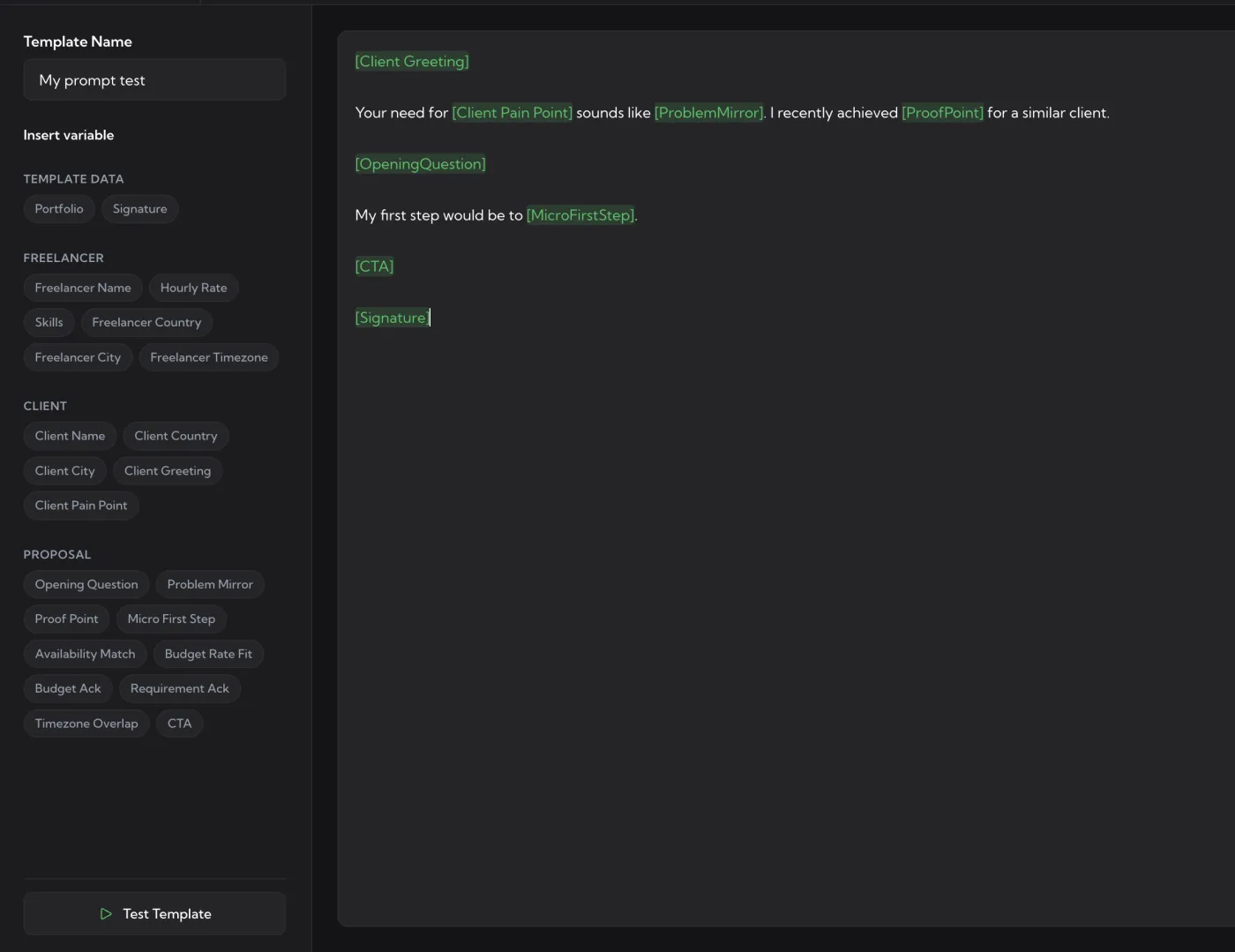
TEMPLATE DATA – your reusable values
Stored once on the Cover Letters page under the TEMPLATE DATA section. Use them in any template:
[Portfolio]– your portfolio links (or whatever value you saved under the Portfolio entry)[Signature]– your signature block – name, role, contact, links
You can add your own entries on the Cover Letters page (rates, contact details, etc.) and they’ll show up here as new chips automatically.
FREELANCER – pulled from your synced Upwork profile
[Freelancer Name]– your Upwork display name[Hourly Rate]– your set hourly rate[Skills]– your top skills[Freelancer Country]– your country[Freelancer City]– your city[Freelancer Timezone]– your timezone
Make sure your Upwork profile is synced (see Sync your Upwork profile) so these values are up to date.
CLIENT – extracted from the job and the client’s profile
[Client Name]– the client’s first name if visible on the job page (falls back to “there” or “team”)[Client Country]– the client’s country from the job posting[Client City]– the client’s city, if available[Client Greeting]– a context-appropriate greeting (“Hi”, “Hello”, “Good morning”) based on tone and timezone[Client Pain Point]– the specific problem AI infers from the job description
PROPOSAL – AI-generated for the specific job
These are produced fresh for each job at submission time, so the proposal stays unique:
[Opening Question]– an engaging, non-generic question to start the proposal[Problem Mirror]– restates the client’s problem in your own words to show you understood it[Proof Point]– a concrete past achievement relevant to this job[Micro First Step]– a small, specific first action you’d take if hired[Availability Match]– confirms you can start within the client’s timeline[Budget Rate Fit]– addresses budget compatibility tactfully[Budget Ack]– acknowledges the budget without negotiating[Requirement Ack]– confirms you understand the listed requirements[Timezone Overlap]– describes the working-hours overlap with the client[CTA]– a closing call to action – question or invitation to chat
Custom brackets
You’re not limited to the built-in chips. Anything you put in [brackets] works as long as AI can infer it from context – e.g. [My Qualifications], [Engaging Question], [React Years]. AI also accepts both spaced and PascalCase forms – [Problem Mirror] and [ProblemMirror] are treated the same way.
How variables get filled in
When you click Generate in the widget on Upwork, AI:
- Reads the template and identifies all bracket tokens
- Pulls TEMPLATE DATA and FREELANCER values from your account / synced profile
- Extracts CLIENT values from the current job page and client profile
- Generates PROPOSAL values fresh for this specific job
- Resolves any custom brackets from the job context
- Blends everything into the final cover letter
Tips
- 3–5 variables per template is the sweet spot – more than ~8 starts to feel stilted.
- Use each variable once. Repeating
[Freelancer Name]three times reads like a broken mail merge. - Mix static and dynamic text. A few hardcoded phrases plus a handful of variables sounds the most natural.
- Test before saving. Use the ▶ Test Template button to preview how variables resolve before you ship the template.