


The Upwex Chrome extension renders an Upwex AI widget directly inside the Upwork chat sidebar. From there you can push the chat to Pipedrive in one click and keep it in sync as new messages arrive.
Where the widget appears
The widget is shown only on Upwork chat-room pages – URLs like upwork.com/ab/messages/rooms/<room-id>. It’s not present on the inbox, on job listings, profiles, or any other Upwork page. It sits inside the right sidebar of the chat, below the contract/profile info panel.
Widget states
The same widget renders different content depending on connection and sync state:
- Pipedrive not connected – message and a button to Connect Pipedrive (opens Tools & Apps in a new tab).
- Plan doesn’t include CRM – Upgrade Plan button (CRM is gated to Pro and higher; Lite users see this state).
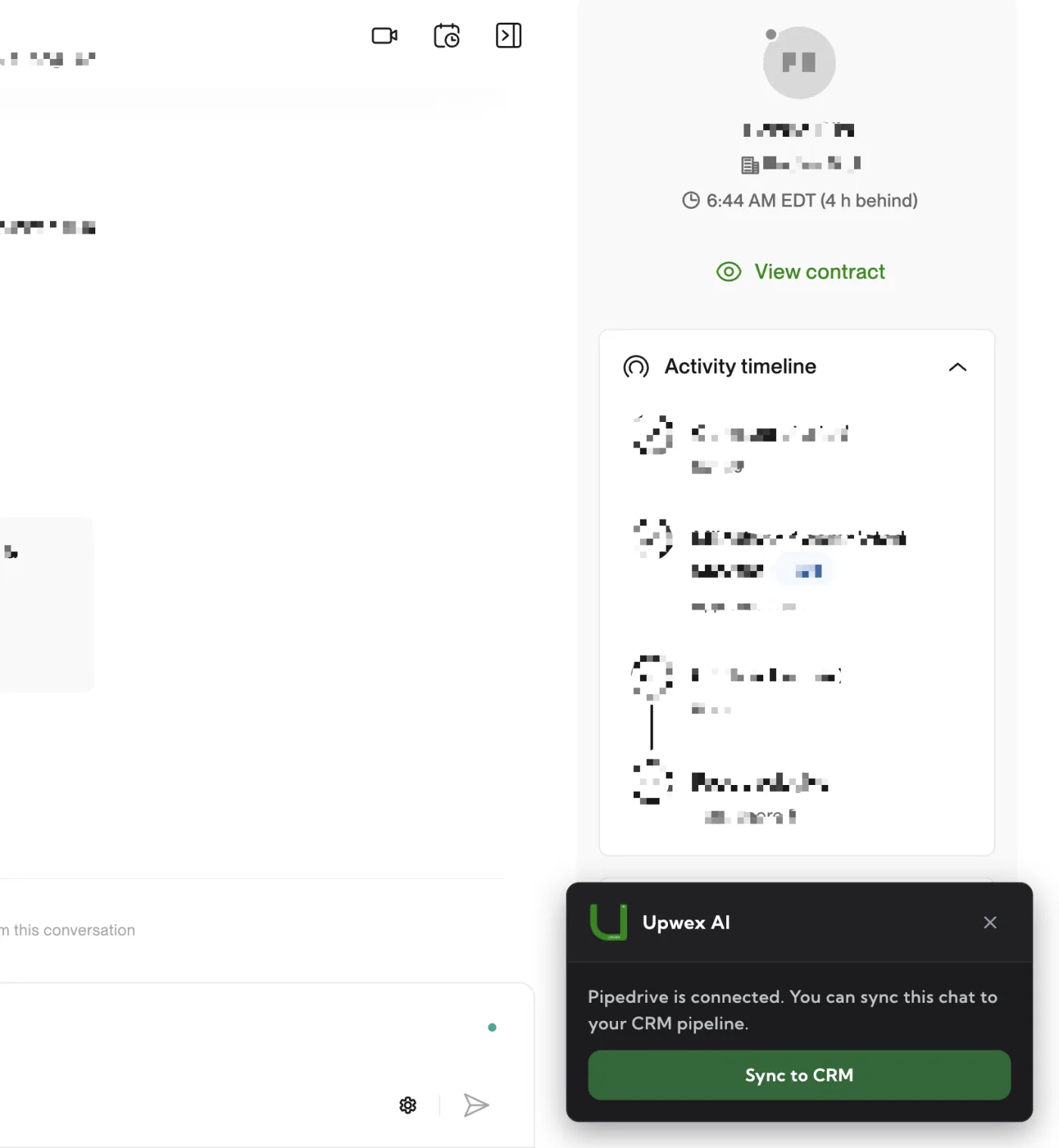
- Connected, ready to sync – body text “Pipedrive is connected. You can sync this chat to your CRM pipeline.” with a green Sync to CRM button.
- Synced – preview cards (Deal, Lead, Contact, Organization) each with an Open in Pipedrive link, plus an Update button to push new messages.
- Re-sync required – when the backend marks the chat with
full_sync_needed, the widget falls back to the Sync to CRM button so you can run a fresh full sync. - Unsupported chat – direct messages (not job rooms) show an info notice; nothing to sync.
- Chat older than sync start date – info notice; only chats from the configured date are syncable.
- Error – last action failed; widget shows the error and a Retry button.
Sync flow – first time
- On any Upwork chat page, find the Upwex AI widget in the right sidebar.
- Click the green Sync to CRM button.
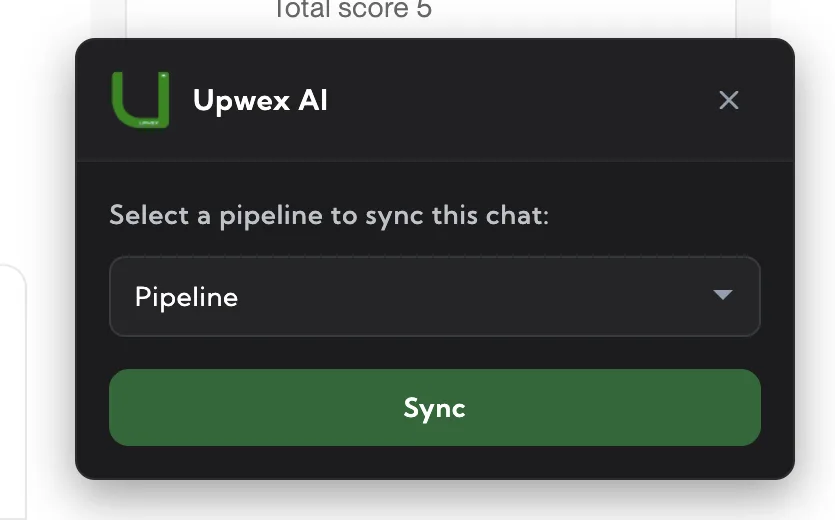
- A modal opens with the title Upwex AI and the prompt “Select a pipeline to sync this chat:”. The Pipeline dropdown lists every pipeline from your Pipedrive workspace.
- Pick the target pipeline and click the green Sync button.
- Upwex calls Pipedrive and creates the records you enabled in Pipedrive sync settings: a Contact (always), optionally a Company, optionally a Lead, optionally a Deal with the configured deal-name template, plus optional Job / Bid / All-messages notes.
- Once Pipedrive responds, the widget switches to the synced state and shows preview cards for the created entities. Each card has an Open in Pipedrive link that opens that record in a new tab.
What gets created in Pipedrive
The extension only sends chat metadata + the chosen pipeline ID – backend logic decides what to create based on your sync settings toggles:
- Contact – always created (the Upwork client as a Pipedrive Person).
- Organization (Company) – when Create the Contact’s Company in the CRM automatically is on.
- Lead – when Create lead is on.
- Deal – when Create deal is on; named by your Deal Name Template (
#contact,#firstname,#lastname,#company). - Notes – Job Details / Bid Details / All messages, depending on the three Notes & Activity toggles.
Update an already-synced chat
When new Upwork messages arrive after the chat has been synced, the widget switches into the synced state with an Update button. Click it to push only the new messages – Upwex updates the existing Pipedrive Deal in place rather than creating a duplicate. The pipeline you originally chose stays the same; you can still see it in the dropdown next to the Update button.
Re-sync from scratch
If you change which records Upwex should create (toggling Create deal, Create lead, or any Notes toggle), the backend marks affected chats with full_sync_needed. The widget then shows the Sync to CRM button again – clicking it runs a fresh full sync that brings the existing records up to date with your new settings.
Troubleshooting
- Widget doesn’t appear – make sure the URL contains
/ab/messages/rooms/. The widget is hidden on the inbox and on direct (non-job) message threads. - Says “Connect Pipedrive” even though I’m connected – refresh the Upwork page once; the extension re-reads the connection state on load.
- “Upgrade Plan” appears – your current plan is Lite. CRM sync needs Pro or higher; upgrade in the Billing page.
- Pipeline dropdown is empty – your Pipedrive workspace has no pipelines yet, or the OAuth token expired. Try disconnecting and reconnecting Pipedrive in Tools & Apps.
- Sync failed (Retry button) – check the Pipedrive connection on the Tools & Apps page; reconnect if the card no longer shows Connected.