


After Pipedrive is connected, the Configure button on the Pipedrive card opens a single settings page that controls what Upwex creates in Pipedrive when an Upwork chat is synced. Until at least one toggle is on, syncing has no visible effect.
Where to find it
Two ways to open the page:
- account.upwex.io/pipedrive-settings directly
- Tools & Apps → click Configure on the Pipedrive card
The header has a Back to Tools & Apps link. The page itself has three sections – Sync Settings, Deal Configuration, Notes & Activity – and a Save button at the bottom that stays disabled until you change something.
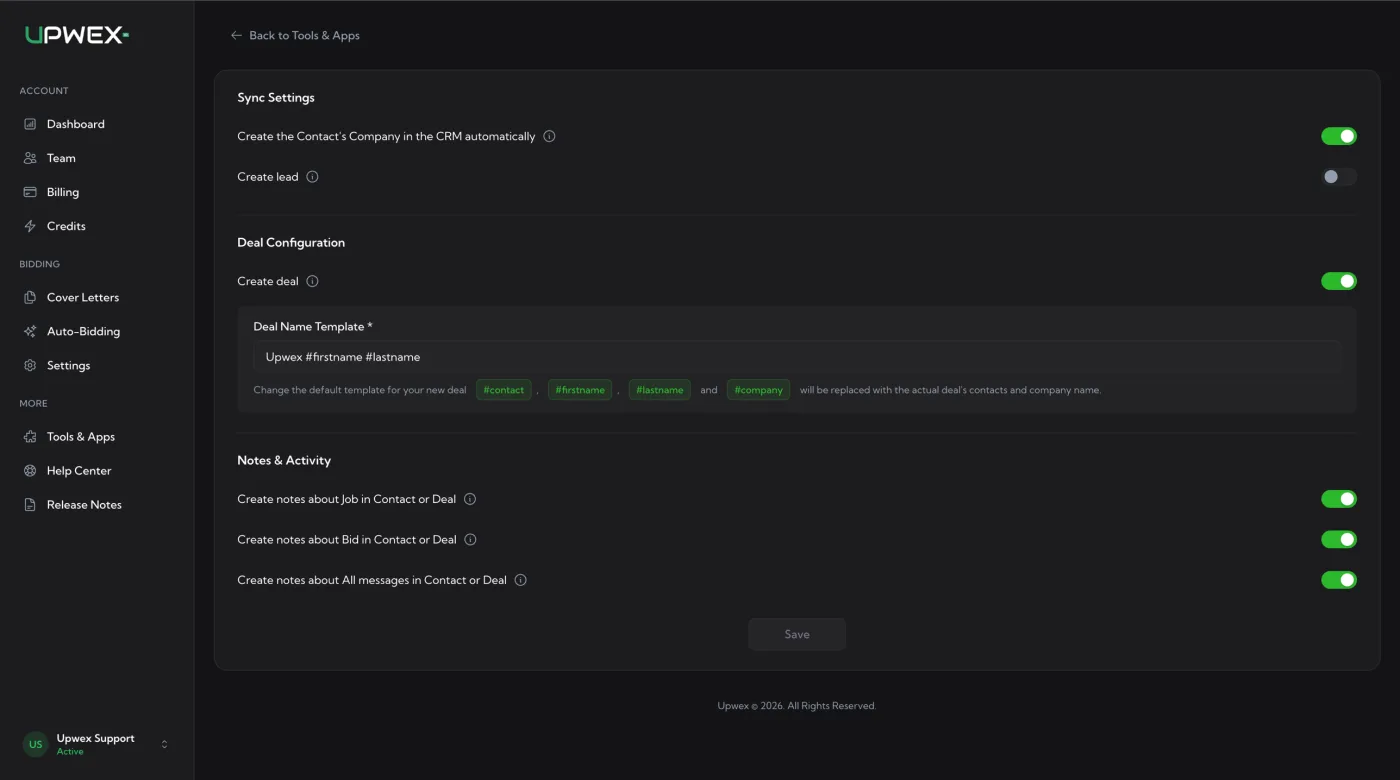
Sync Settings
Create the Contact’s Company in the CRM automatically
When you sync an Upwork chat, Upwex always creates the client as a Contact (Person) in Pipedrive. With this toggle on, it also creates an associated Organization (Company) – using the client’s company name from Upwork if available, otherwise the contact’s name. Leave it on for proper Pipedrive structure; turn it off if you only want flat contacts and no companies.
Create lead
With this toggle on, syncing an Upwork chat also creates a Lead in Pipedrive (in addition to the Contact and the optional Deal). Use it if your Pipedrive workflow starts at the Leads inbox and only converts qualified leads into deals.
Deal Configuration
Create deal
Master switch for deal creation. With this toggle on, every new contract from a synced Upwork chat becomes a Deal in Pipedrive. Each new contract from the same client produces a separate deal – Upwex does not merge them.
Deal Name Template
Visible only when Create deal is on. The template is required and controls how each new deal is named. Default value: Upwex #firstname #lastname. Below the field, four green clickable tags insert placeholders into the template:
#contact– full contact name from Upwork#firstname– first name only#lastname– last name only#company– client’s company (or contact name as fallback)
You can mix free text with placeholders. Examples:
Upwork · #contact→ Upwork · Sarah Johnson#company – #firstname→ Acme Inc – Sarah[Upwork] #contact (#company)→ [Upwork] Sarah Johnson (Acme Inc)
Notes & Activity
Three independent toggles that attach Pipedrive Notes to the synced Contact / Deal:
Create notes about Job in Contact or Deal
Adds a Job Details note containing: Job ID, Job Date, Country, City, Job Title, Job Description. Useful for keeping the Upwork job copy alongside the deal.
Create notes about Bid in Contact or Deal
Adds a Bid Details note containing: Job ID, Bid Date, Proposed rate, and the full Cover letter. Useful for tracking what was sent to the client.
Create notes about All messages in Contact or Deal
Creates a single note with the full chat history (every message between you and the client). Updates whenever the chat is re-synced.
Save
The Save button stays disabled until you actually change a value. After saving, you’ll see a confirmation toast “Settings have been successfully saved.” and the button returns to disabled until the next change.
Settings apply to future syncs only. Records previously created in Pipedrive are not retroactively updated when you change toggles or the deal-name template.
Common configurations
- Lead-first workflow – turn on Create lead, leave Create deal off. Upwex creates Lead + Contact (+ optional Company) for every synced chat. Convert to deal manually in Pipedrive.
- Deal-first workflow – turn off Create lead, turn on Create deal, customise the deal-name template. Upwex creates Deal + Contact (+ optional Company) for every synced chat. The fastest setup for agencies that bid only on serious jobs.
- Full archival – additionally turn on all three Notes toggles. Each Pipedrive deal will hold the Upwork job copy, the proposal you sent, and the full chat transcript.
Plan note
This page is included in Flex. If your account is still on the older Lite plan, you see a “This functionality is not available for Lite plan” message instead – switch to Flex on the Pricing Plans page to get it. If Pipedrive isn’t connected yet, the page shows a “Pipedrive is not connected” notice with a button back to Tools & Apps.