


Pipedrive is the CRM that Upwex syncs with – once connected, Upwex can push Upwork leads, deals, contacts, and chat history straight into your Pipedrive workspace.
Prerequisites
- An active Pipedrive workspace
- Admin access in that workspace (you’ll be installing an OAuth app)
- Upwex plan: Flex (Pipedrive CRM sync is included; it is not available on the older Lite plan)
Step 1 – Open Tools & Apps
Sign in to account.upwex.io, open the left sidebar and click Tools & Apps. You’ll see a single Pipedrive card with the description “Syncs data from Upwork to Pipedrive CRM“ and a green Connect button on the right.
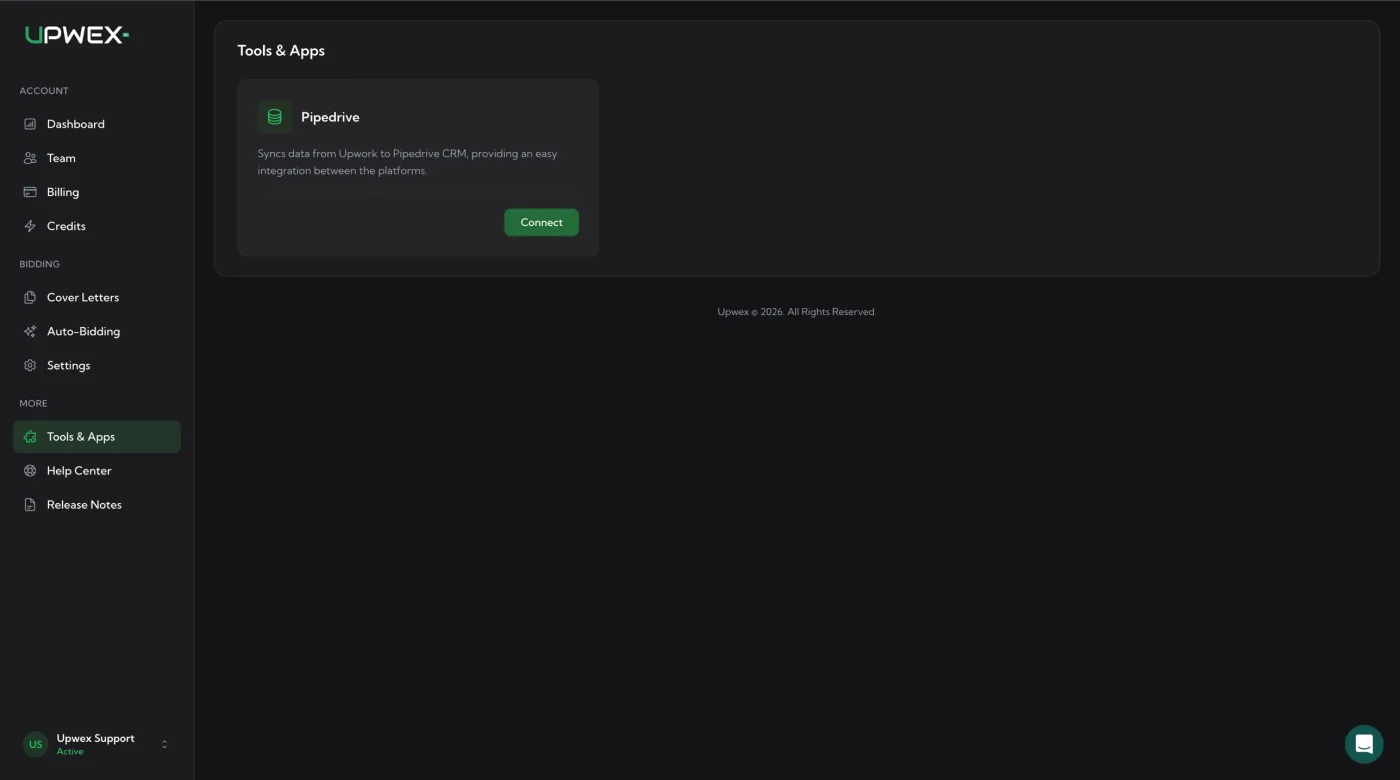
Step 2 – Click Connect
Clicking Connect opens the Pipedrive OAuth consent screen in a new tab. If you’re not signed in to Pipedrive yet, log in first.
Step 3 – Review and approve permissions
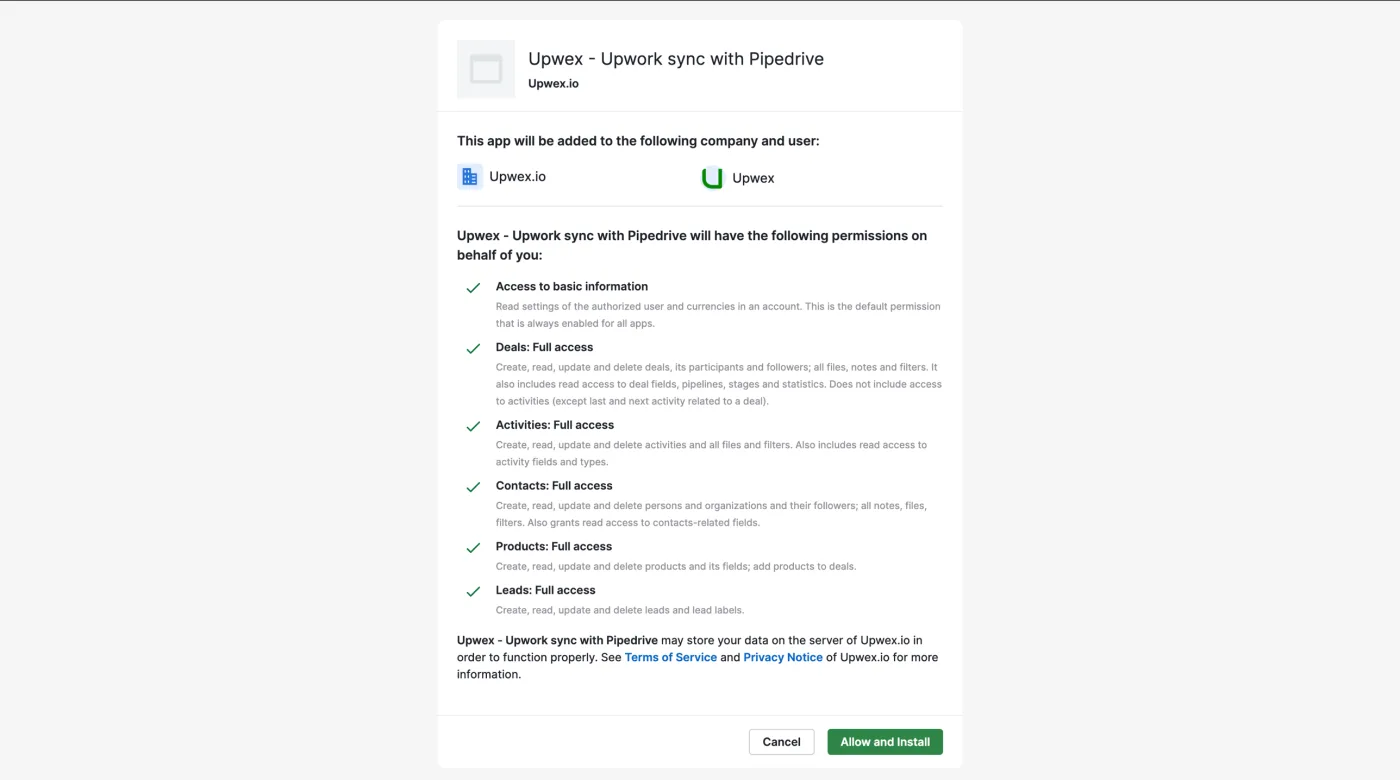
The consent screen shows the app as Upwex – Upwork sync with Pipedrive and the company / user the integration will be installed for. Below it, Pipedrive lists the permissions Upwex requests:
- Access to basic information – read your user settings and currencies (default for every Pipedrive app)
- Deals: Full access – read, create and update deals, participants, files, notes and filters; read pipelines, stages and statistics
- Activities: Full access – read, create and update activities and their files
- Contacts: Full access – read, create and update persons and organisations and their followers; access to notes and files
- Products: Full access – read, create and update products and add them to deals
- Leads: Full access – read, create and update leads and lead labels
Although the OAuth scope formally grants delete rights as part of “Full access”, Upwex itself only creates and updates records – it never deletes anything from your Pipedrive.
Step 4 – Click Allow and Install
Press the green Allow and Install button. Pipedrive issues an OAuth token to Upwex and redirects you back to the Tools & Apps page.
Step 5 – Confirm the connection
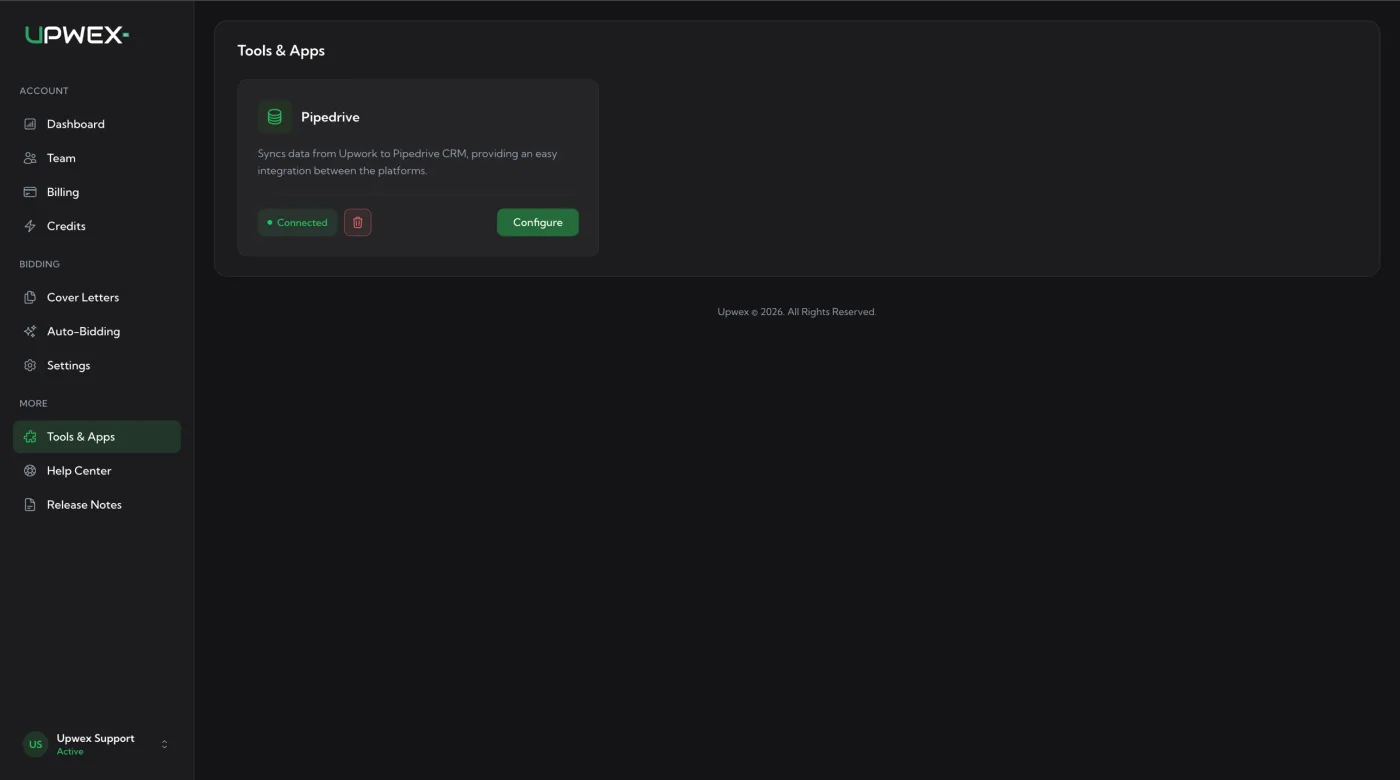
The Pipedrive card now shows a green Connected pill, a red trash icon (disconnect), and a green Configure button. Clicking Configure opens the Pipedrive sync settings page where you choose what Upwex creates in Pipedrive on each sync – covered in the next article.
Disconnect Pipedrive
Click the red trash icon on the Pipedrive card to disconnect. Upwex revokes its OAuth token and stops syncing immediately. Records that Upwex previously created in Pipedrive are not removed – your Pipedrive workspace keeps the existing data, only future sync stops.
What happens after the connection?
Connecting alone does not start syncing data. By default the integration is connected but every “create” toggle is off – Upwex won’t push anything to Pipedrive until you decide what it should create. On the Configure page you’ll be able to:
- Auto-create the contact’s company in Pipedrive when syncing
- Toggle creation of a lead when an Upwork chat is synced
- Toggle creation of a deal per new contract, with a deal-name template using
#contact,#firstname,#lastname,#companyplaceholders - Toggle Pipedrive notes for the Job, the Bid, and all messages in the Upwork chat
Step-by-step walkthrough of each toggle is in Configure Pipedrive sync settings.