


If you don’t see Upwex widgets on Upwork – the AI Job Assistant on a job page, the Cover Letter widget on the proposal page, the CRM Sync widget in the chat sidebar, or the contextual notification badge – start with these checks.
Quick checklist
- Is the extension installed and enabled in Chrome?
- Are you signed in via the popup (you should see your profile, not the “Welcome to Upwex” screen)?
- Did you just install or reload the extension? Open Upwork tabs need a refresh to reconnect content scripts.
- Are you on a Chromium-based browser (Chrome, Edge, Brave, Arc, Opera)? The extension does not work in Safari or Firefox.
Fix 1 – Confirm the extension is installed and enabled
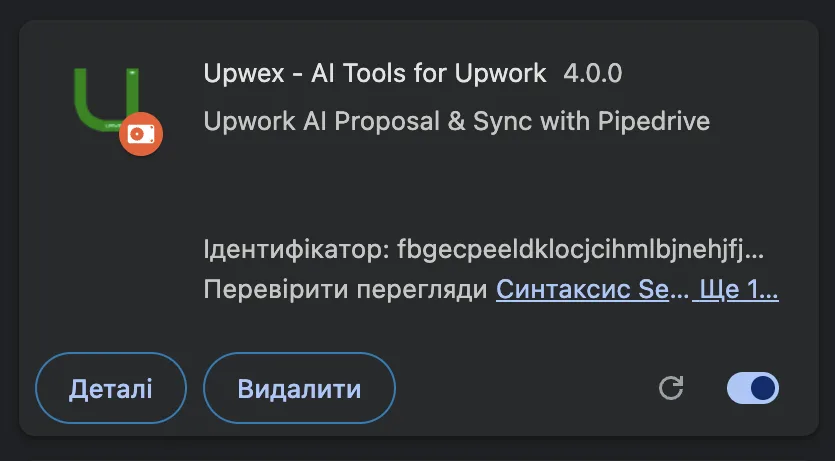
- Open
chrome://extensionsin a new tab. - Look for Upwex – AI Tools for Upwork. The current version is 4.0.0; the subtitle reads “Upwork AI Proposal & Sync with Pipedrive”.
- Make sure the toggle on the card is on (blue / green, not grey).
- If the card isn’t there at all, install the extension from the Chrome Web Store.
Fix 2 – Check the popup state
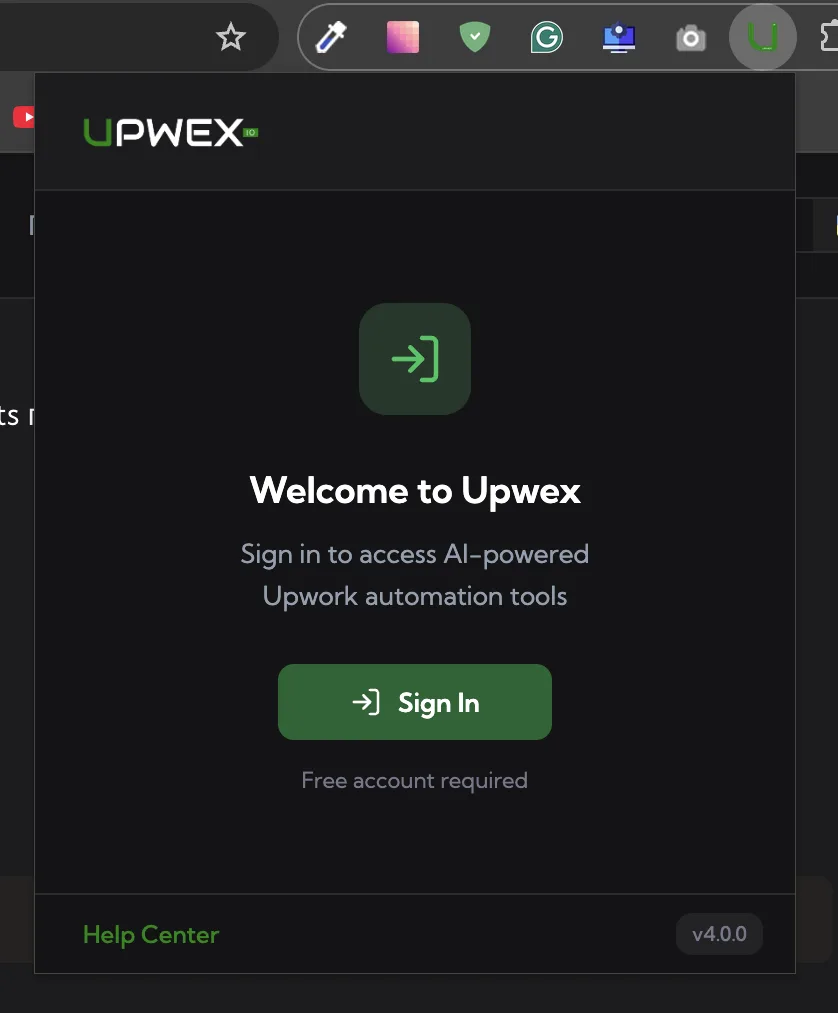
Click the green Upwex U icon in the Chrome toolbar. There are two main popup states:
- “Welcome to Upwex” screen – appears when you’re signed out. You’ll see the Sign in to access AI-powered Upwork automation tools caption, a green Sign In button, and “Free account required” below it. Click Sign In and finish authentication on
account.upwex.io. - Logged-in state – your name, email, plan badge, optional trial-days badge, AI Credits progress bar, an Upwork Profile card with Sync / Manual buttons, and feature shortcuts. If you see this state, the extension is up and running; the popup is not the problem.
If you ever see a different popup, the screenshot is out of date – the current build only has these two main states.
Fix 3 – Reload the Upwork page
Content scripts can lose their connection when the extension is reloaded or updated. A simple page refresh reconnects them – press Cmd+R on macOS or Ctrl+R / F5 on Windows / Linux on every Upwork tab you have open.
Fix 4 – Check site access permissions
On chrome://extensions, click Details on the Upwex card. Scroll to Site access and make sure it’s set to On all sites or that upwork.com is explicitly allowed. The extension’s host pattern is https://*.upwork.com/*, so all Upwork subdomains are covered automatically.
Fix 5 – Restart the browser
Once in a while Chrome caches a stale service worker for the extension. Quit Chrome entirely (⌘Q on macOS, close every Chrome window on Windows / Linux) and reopen it. Open Upwork after the browser is fully restarted.
Fix 6 – Reinstall the extension
As a last resort:
chrome://extensions→ find Upwex → click Remove.- Install Upwex fresh from the Chrome Web Store.
- Click the toolbar icon → Sign In again – your account, prompts, and profile data live on Upwex servers, so nothing is lost.
Still not working?
Reach out via the popup’s Help Center link (it opens this site), or email support@upwex.io. To speed things up, send:
- Your operating system and Chrome version (paste the value from
chrome://version) - The Upwex extension version shown in the popup footer (e.g.
v4.0.0) - The exact Upwork URL where the widget is missing
- A screenshot of the page and of the Upwex popup
This is enough for us to reproduce the issue.