


Upwex supports teams – Owners and Admins can invite people to share licenses, AI credits and analytics. Useful for agencies and any team running multiple Upwork freelancer profiles.
Who can invite
Only Owner and Admin roles can send invitations. Regular Members cannot invite others.
Step 1 – Open the Team page
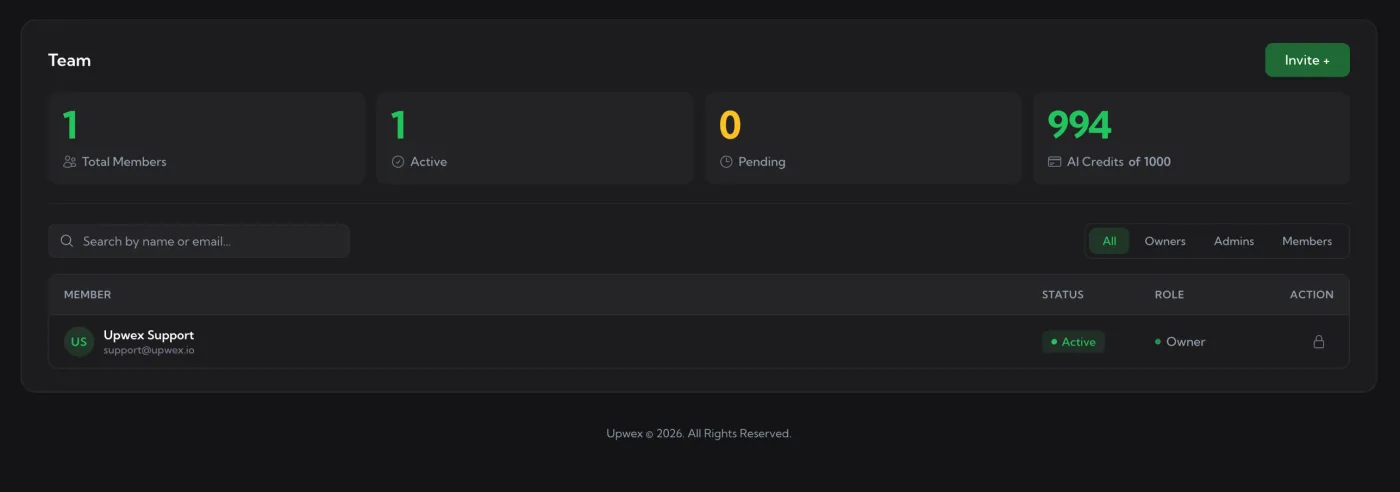
Go to account.upwex.io/team. The header strip shows four stat cards summarising your team:
- Total Members – every member, including pending invites
- Active – members who have accepted the invite and are using their seat
- Pending – invited but not yet accepted
- AI Credits – X of Y – credits remaining vs the plan total for the team
Below the cards: a search field and role-filter tabs (All, Owners, Admins, Members) over the table itself with columns MEMBER / STATUS / ROLE / ACTION.
Step 2 – Click Invite +
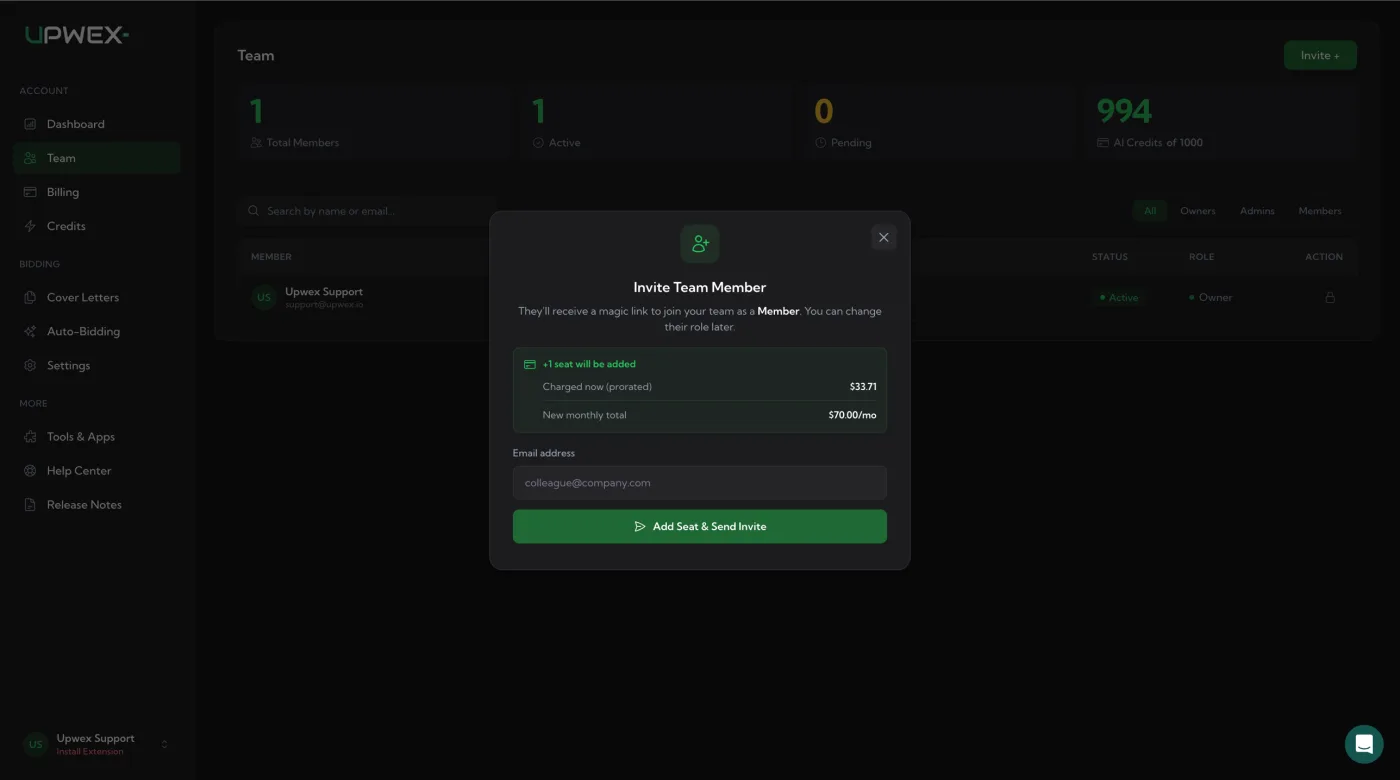
The green Invite + button at the top right opens the Invite Team Member modal.
Step 3 – Fill in the email
The modal has only one input – Email address. There’s no role picker: every invite goes out as a Member, and you can promote them to Admin later from the Team table.
A green +1 seat will be added banner shows the billing impact in real time:
- Charged now (prorated) – the partial charge for the current billing cycle, calculated from days remaining.
- New monthly total – what your subscription will be from the next renewal onward.
Step 4 – Add Seat & Send Invite
Click the green Add Seat & Send Invite button. Three things happen at once:
- Your subscription is charged the prorated amount immediately.
- The seat is added to your plan – even before the invitee accepts.
- Upwex emails the recipient a one-click magic link to join.
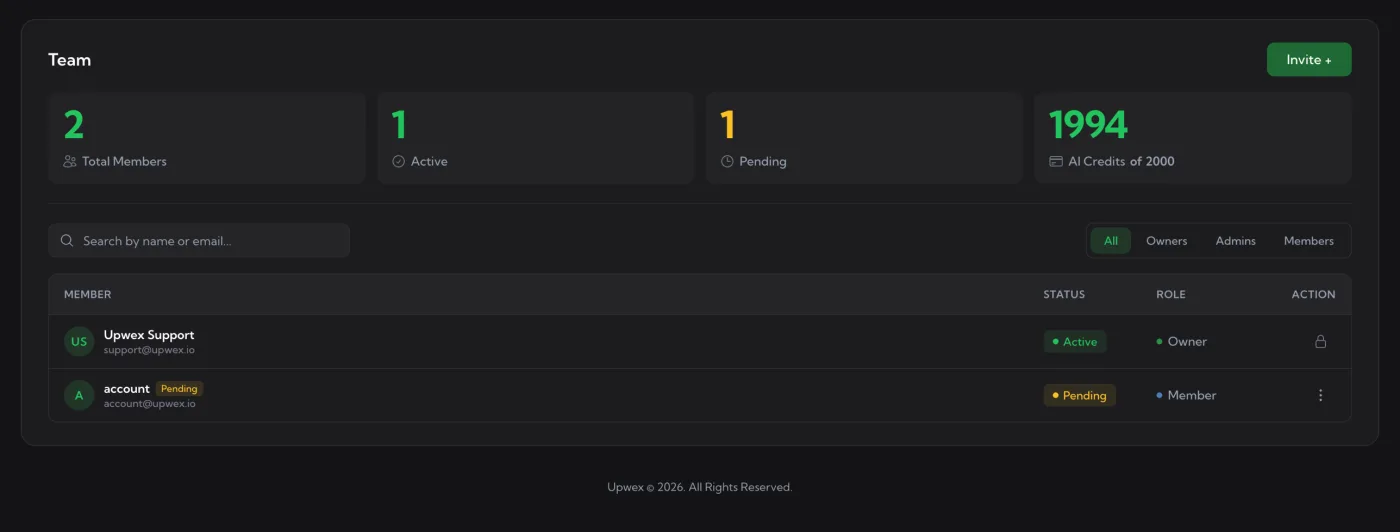
The new member appears in the Team table with a yellow Pending badge.
Step 5 – Recipient accepts
The recipient clicks the magic link, lands on Upwex, signs in (or creates an account if needed) and is automatically added to your team. Status switches from Pending to Active; their default role is Member.
Resend or cancel a pending invite
The ⋮ menu on a Pending row offers:
- Resend Invite – re-sends the magic link if the original email went to spam or was lost.
- Cancel / Remove – withdraws the invitation. The seat is removed and your monthly total returns to its pre-invite value at the next renewal.
Seat billing – at a glance
- Every invite reserves one seat immediately, billed prorated for the current cycle.
- Pending invites count toward your seats and your monthly total – same as Active members.
- Cancelling a Pending invite frees up the seat going forward.
- AI Credits scale with seat count – on Flex every seat adds 50 AI Credits per month to the team’s shared pool, and the total on the Team page shows that pool.