


When a team member leaves your agency or is no longer using Upwex, remove them from your team. This frees up a seat, reduces your subscription, and revokes their access.
Who can remove members
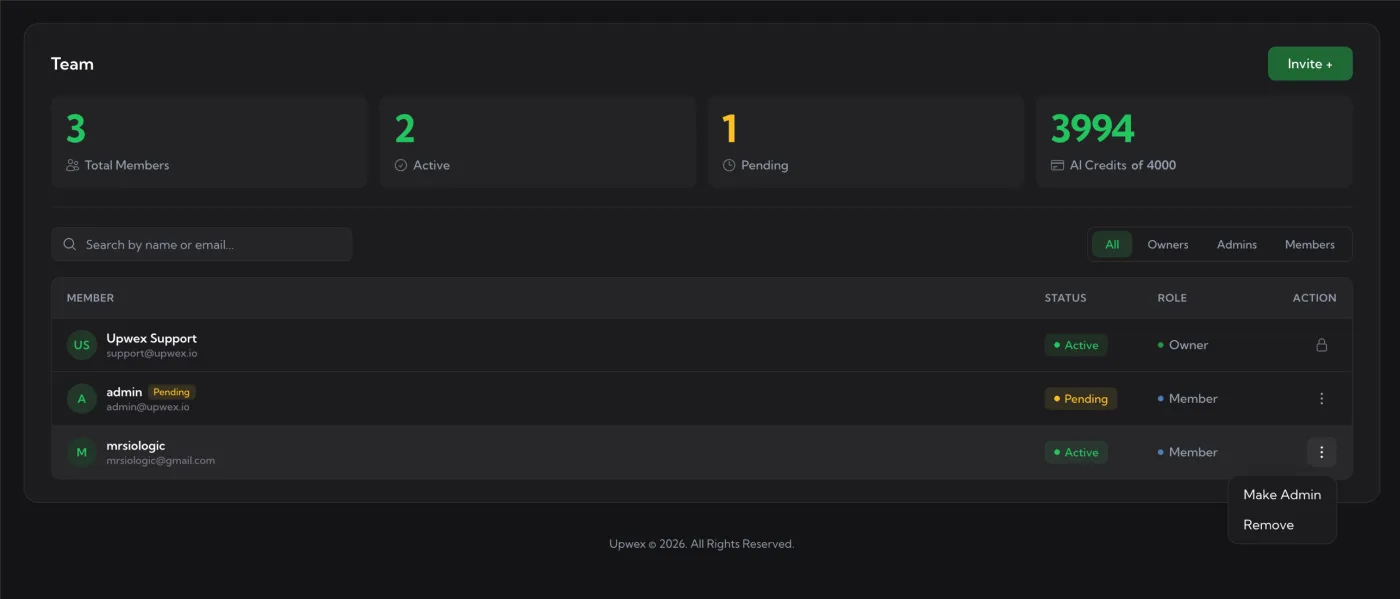
Only Owners and Admins can remove members. Admins can remove other Admins or Members but cannot remove the Owner (the Owner row has a lock icon instead of the ⋮ menu).
Step 1 – Open the ⋮ menu
Go to account.upwex.io/team, find the member, and click the ⋮ menu in the Action column. Pick Remove.
Step 2 – Confirm in the Remove Member modal
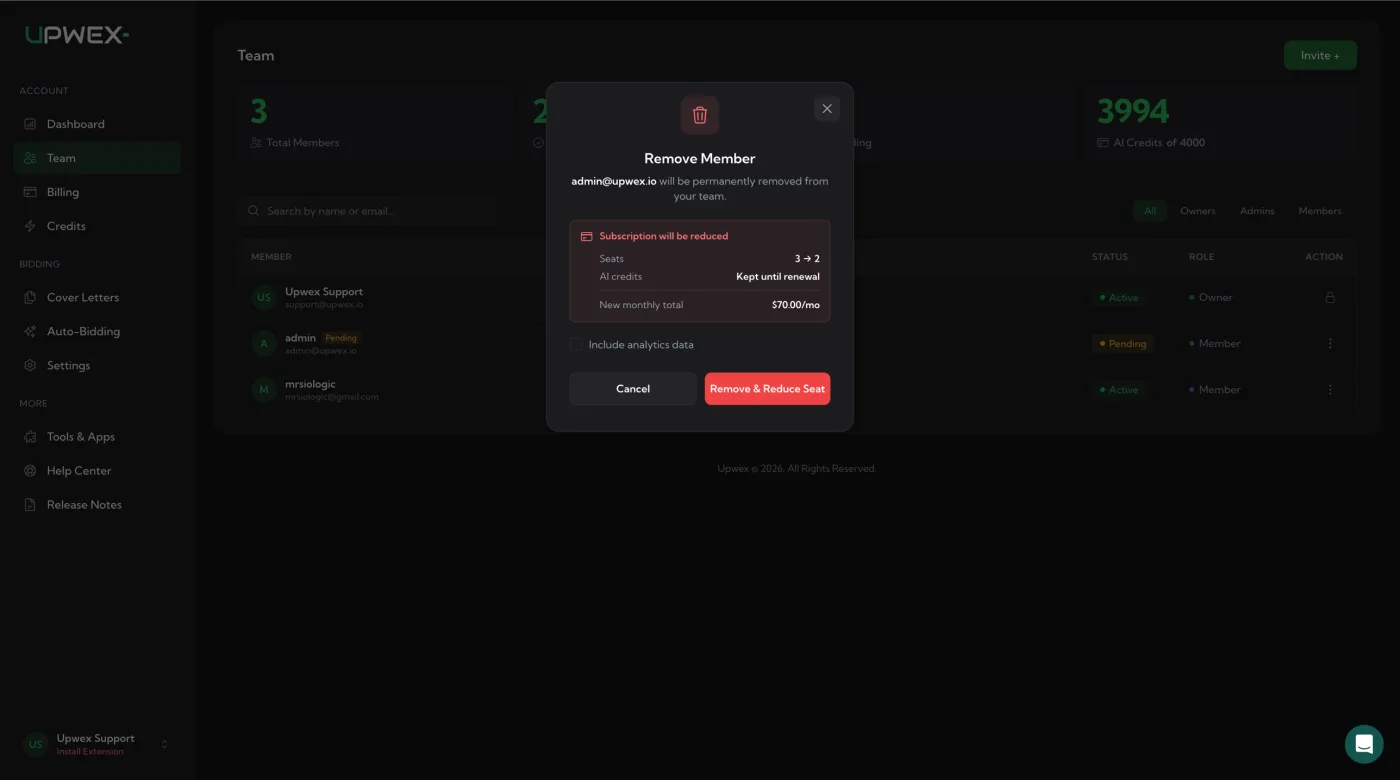
The Remove Member modal opens with a red trash icon and the message “<email> will be permanently removed from your team”. Below it, a red Subscription will be reduced box previews the billing impact:
- Seats – current count → new count (e.g. 3 → 2)
- AI credits – Kept until renewal – the team’s AI credit balance is preserved through the end of the current billing cycle, only the per-seat allowance recalculates at the next renewal
- New monthly total – what your subscription will be from the next renewal
For Pending invites, removal works the same way – the seat is released. If your subscription is canceled, past due, or you have no active plan, the modal shows just the seat change without billing impact.
Step 3 – Choose the data option
Below the billing box is one checkbox: Include analytics data. It controls how much of the member’s history is removed:
- Unchecked (default – soft remove) – the member is removed and their seat is released, but their analytics history (proposals, replies, reply rate) stays visible in your team reports. You can re-invite them later by sending a new invite to the same email.
- Checked (hard remove) – the member and all their analytics data are permanently deleted from your team. Use this only if the member requested data deletion (e.g. under GDPR) or you’re sure you’ll never need the history.
Step 4 – Click Remove & Reduce Seat
The red button is labeled Remove & Reduce Seat when the action will actually reduce your subscription seat count. If there’s no billing impact (no active subscription), it just says Remove. There is no extra typed-confirmation step – clicking the button is final.
What happens after removal
- The seat is released; your Stripe subscription is reduced by 1 with prorated credit applied to your next invoice.
- The member loses access to the Upwex app and Chrome extension immediately.
- Their personal Upwex account is not deleted – they can still sign in. They are simply no longer in your team.
- If they belong to other Upwex teams, those memberships are unaffected.
Re-inviting later
If you used soft remove (default), you can re-invite the same email at any time. The new invite will reserve a seat (with prorated charge) just like a fresh invite. After hard remove, you can still re-invite, but their previous analytics history is gone.