


Team members can be promoted or demoted between Admin and Member roles at any time. The Owner role cannot be changed through the UI – contact support if you need to transfer ownership.
Who can change roles?
Only Owners and Admins can change team member roles. Members cannot change their own or others’ roles.
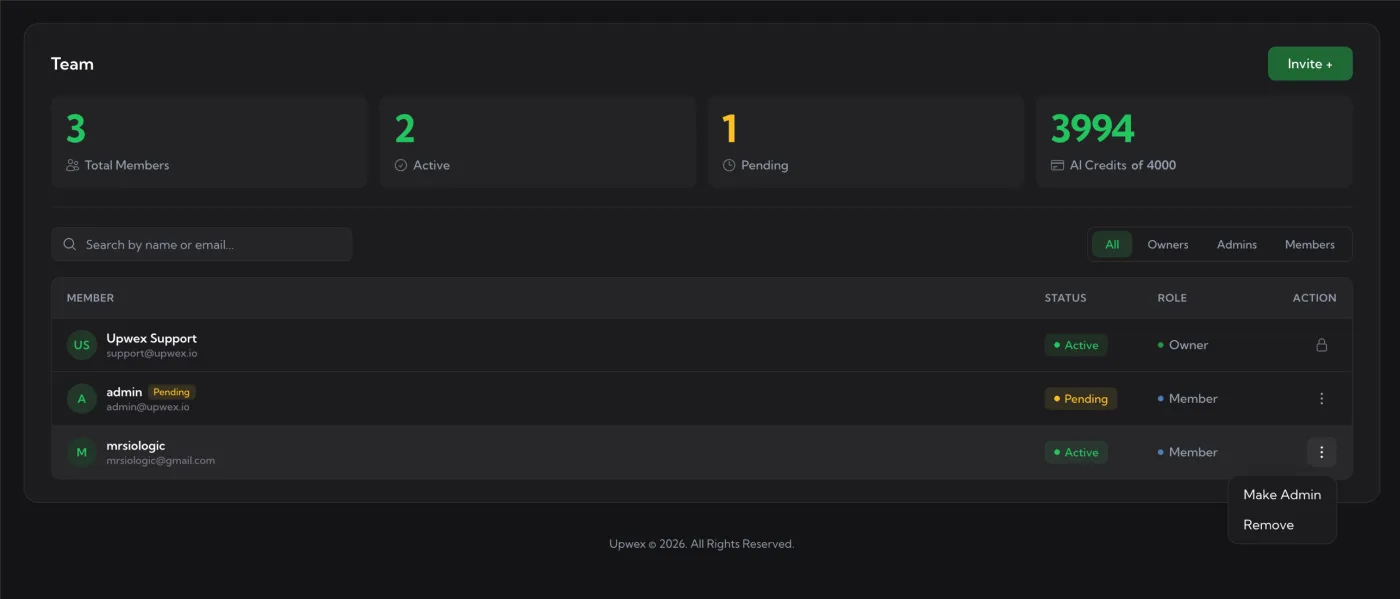
How to change a role
- Open the Team page at account.upwex.io/team
- Find the member whose role you want to change
- Click the ⋮ menu in the Action column on their row
- Select Make Admin or Make Member (the same menu also has a Remove option)
The Owner row has a lock icon instead of the ⋮ menu and cannot be changed.
What changes immediately
Role changes take effect instantly. The member’s access to pages and actions updates without requiring them to log out and back in.
Promoting to Admin
When you promote a Member to Admin, they gain:
- Access to Billing and subscription pages
- Ability to invite, resend invites, and remove other team members (cannot remove the Owner)
- Ability to change other members’ roles between Admin and Member
- Ability to top up AI credits and manage seats
- Access to team-wide analytics (not just their own profile)
- Access to CRM, prompts, and Auto Bid configuration
Demoting to Member
When you demote an Admin to Member, they lose all the above permissions. Their existing Upwex data (prompts, profile links, history) is preserved.
Best practices
- Don’t over-promote – extra Admins increases the risk of accidental billing actions. Keep Admin count to 1–2 for small teams.
- Promote before vacation – if the Owner is going on leave, temporarily promote a trusted member to Admin so billing can be handled if needed.
- Demote when offboarding – before removing a member, demote them to Member first. This prevents accidental team-wide actions during the offboarding window.