You can change your Upwex plan at any time from the Pricing Plans page. The flow looks the same on the surface – open the page, click a button on the new plan’s card, confirm the modal – but the billing behaviour differs sharply between upgrades and downgrades:

  • Upgrades take effect immediately – you’re charged the prorated difference (minus a credit for unused time on your current plan, plus tax) on the same card that pays for your subscription, and the new plan’s features unlock right away.
  • Downgrades are scheduled – you keep full access to your current plan until the end of the billing cycle, and the new (cheaper) plan kicks in on your next invoice. No charge, no credit, no refund.

This article walks through both flows step-by-step.

Where to start

Open account.upwex.io/billing and click the Change Plan link in the Current Plan panel – or go directly to account.upwex.io/plans. Each card shows the right action button for your current tier:

  • The card matching your active plan shows a green Current Plan badge in the top-right and a Manage Team button at the bottom (with a quiet Cancel Plan link below it).
  • Cards above your tier show Upgrade (green button).
  • Cards below your tier show Downgrade (grey/outlined button).

Example: a team on the Lite plan sees Manage Team on Lite, Upgrade on Pro, Upgrade on Max. A team on Max sees Downgrade on Lite and Pro, Manage Team on Max.

Pricing Plans page from a Lite-plan account: Lite card with the Current Plan badge plus Manage Team button and Cancel Plan link below; Pro card with an amber Recommended badge and an Upgrade button; Max card with an Upgrade button

Upgrade flow (immediate, prorated)

Click Upgrade on the target plan’s card – Pro or Max. Upwex calls the billing API for a Stripe proration preview and opens the Upgrade to [Plan] modal:

Upgrade to Max modal: green up-trending arrow icon, summary block (New plan: Max, Billing: Monthly, Seats, Per seat, New total highlighted green), proration block (Credit for unused current plan in green, Subtotal, Tax, Total due now in amber), explanatory caption, and Cancel/Upgrade buttons

The modal has two stacked blocks plus a confirm row.

Summary block

  • New plan – name of the plan you’re upgrading to (Pro or Max)
  • Billing – Monthly or Yearly, inherited from your current cycle (you can switch the cycle separately)
  • Seats – how many team members you’ll be charged for, e.g. 3 members
  • Per seat – the new plan’s monthly rate
  • New total – full per-cycle amount = seats × per-seat rate (highlighted green)

Proration block (the actual charge for today)

  • Credit (unused [Old Plan]) – Stripe refunds the unused portion of your current plan as account credit. Shown in green.
  • Subtotal – prorated cost of the new plan for the remaining days of the current billing cycle, after the credit is applied.
  • Tax – VAT or sales tax computed automatically by Stripe based on your billing address. Only shown if non-zero.
  • Total due now – Subtotal + Tax, in amber. This is the exact amount Stripe will charge to the saved card on your subscription.

Below the block you see: “You’ll be credited for the unused time on your current plan. Tax is calculated based on your location.” If your billing address or VAT is missing, fix it on the Edit billing information page first – tax shown here depends on it.

What happens when you click Upgrade

  1. Stripe charges the displayed Total due now on your subscription’s card (off-session, no card form).
  2. Your subscription updates to the new plan immediately. The Current Plan badge moves to the new card on the Pricing Plans page.
  3. The AI Credit pool jumps to the new plan’s allowance straight away if it’s higher (Lite 100 → Max 500 = +400 credits per seat instantly), so you can use the bigger pool the same minute.
  4. New plan features (Quick Apply and Proposal Autofill on Pro; 24/7 Auto-Bidding scanner with Custom Match Algorithm and Red Flags prompts on Max, etc.) unlock right away – no logout/login, no cache flush.
  5. Your next renewal date stays the same; the next invoice will be the standard New total.

Downgrade flow (scheduled to next invoice)

Click Downgrade on the target plan’s card. Upwex opens the Downgrade to [Plan] modal – the layout looks similar to the upgrade modal, but the second block is a yellow notice instead of a charge breakdown:

Downgrade to Pro modal: amber down-trending arrow icon, summary block (New plan: Pro, Billing: Monthly, Seats, Per seat, New total in green), amber info notice 'Your current plan stays active until the end of the billing period. The new plan will take effect on your next invoice. No charges or credits. You keep full access to your current plan until renewal.', and Cancel/Downgrade buttons

Summary block

Same structure as in the upgrade modal – New plan, Billing, Seats, Per seat, New total. The New total shown is what you’ll pay starting next billing cycle, not today.

Amber notice instead of a charge

Word-for-word from the modal:

“Your current plan stays active until the end of the billing period. The new plan will take effect on your next invoice. No charges or credits. You keep full access to your current plan until renewal.”

That’s the entire policy. Upwex doesn’t refund the difference for unused days on the higher plan – instead, you get to keep using the higher plan until it would have renewed anyway. From that perspective there’s no “wasted” subscription.

What happens when you click Downgrade

  1. The plan switch is scheduled with Stripe (proration_behavior: none) – no immediate charge, no immediate refund.
  2. Your Current Plan badge stays on the higher plan; an inline note “Downgrades to [Plan] on [date]” appears so you know the change is queued.
  3. You retain every feature, every seat, and every credit allowance of the current plan until renewal day.
  4. On renewal – Stripe issues an invoice for the new lower plan, your subscription switches over, and the AI Credit pool resets to the new (smaller) plan’s allowance.
  5. Until renewal, you can cancel the scheduled downgrade by clicking Upgrade back to your current plan – no fee, no charge.

Cancelling a scheduled downgrade

Changed your mind before renewal? Open the Pricing Plans page again and click the action button on what was your old plan card (it now shows Upgrade because you’re heading to the lower plan). The “Upgrade” modal in this case is just “stay on your current plan” – Stripe cancels the scheduled change with zero charge, and life carries on as before.

Seat changes (mid-cycle)

Adding or removing licensed seats from your team uses the same proration rule as plan changes:

  • Adding a seat – Stripe charges the prorated cost of the new seat for the remaining days, plus tax, on your card immediately. The new member can use the platform right away.
  • Removing a seat – change is scheduled for next invoice. The seat continues to count (and consume credits) until renewal; on renewal, your invoice goes down by one seat.

For full team-management instructions see How team seats work.

Switching between Monthly and Yearly

The Monthly / Yearly toggle at the top of the Pricing Plans page is a separate dimension from plan tier:

  • Monthly → Yearly on the same plan tier (e.g. Pro Monthly → Pro Yearly) is treated as an upgrade because the cycle changes – Stripe charges the prorated yearly amount minus credit for the remaining month, then locks you into a 12-month cycle that saves the equivalent of two months.
  • Yearly → Monthly on the same tier behaves like a downgrade – change is scheduled to take effect when the current annual term ends; Stripe doesn’t refund the unused months.
  • Lite is monthly-only. If you’re on Lite and switch the toggle to Yearly, the Lite card disappears – you can’t pick Lite Yearly because it doesn’t exist.

Effect on AI Credits

Plan changes interact with your AI Credit pool predictably:

  • Upgrade – pool jumps to the new (higher) per-seat allowance immediately. Specifically, the system uses max(currentPool, newPlanAllowance × seats), so you never lose credits you’ve accumulated.
  • Downgrade – pool stays at the old level until renewal. On renewal, it resets to the new (lower) plan’s allowance. Any unused plan credits at that point are flushed (top-up Extra Credits are unaffected and remain forever).
  • Seat add – pool grows by the new seat’s allowance, prorated.
  • Seat remove – pool stays at the old level until renewal, then drops by the removed seat’s allowance.

Cancel Plan vs Downgrade

Don’t confuse these two:

  • Downgrade – switch to a cheaper Upwex plan. You stay paying, just less, with reduced features.
  • Cancel Plan – end the subscription completely at the end of the current period. You lose all paid features and become a free trial user (or unsubscribed). For full instructions and consequences see Cancel your subscription.

Who can change plans

Plan and billing changes require Owner or Admin role on the team. Members see the Pricing Plans page in read-only mode – they can compare plans but the action buttons aren’t rendered.

Receipts and invoices

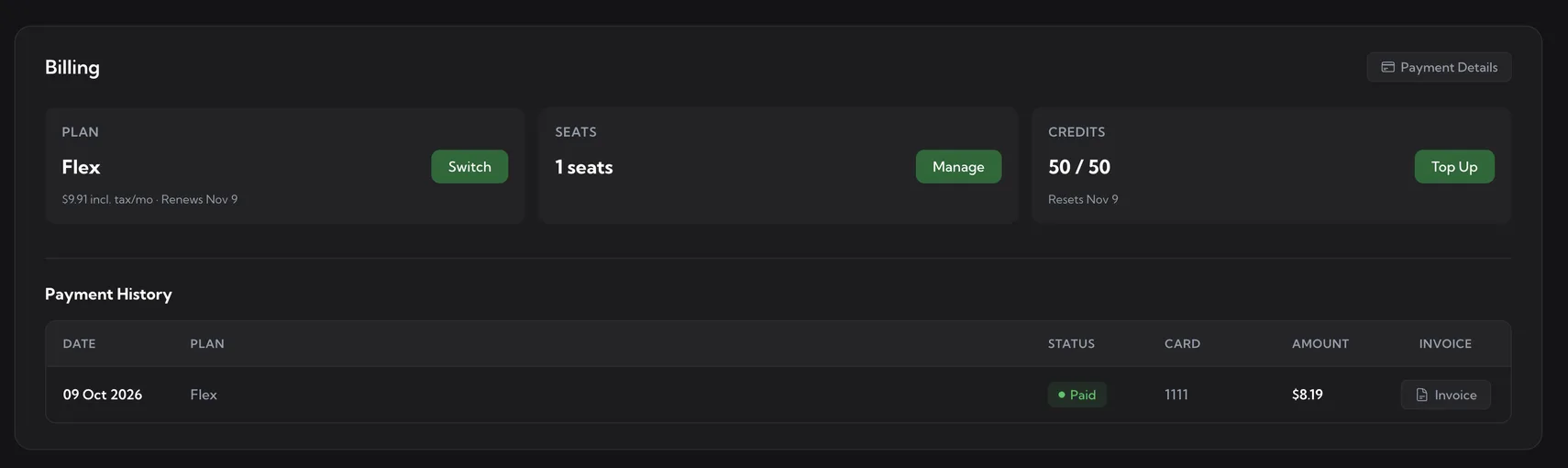
Every prorated upgrade charge produces a Stripe invoice you can download from the Billing page → Payment History. Downgrades don’t create an invoice on the day you click – only at the next renewal, and that one is just the standard subscription invoice for the new (lower) plan.

Related articles