


AI Credits are how Upwex counts AI usage. Every cover letter, screening-question answer, job analysis, Quick Apply and Auto Bid submission spends credits from your team’s monthly pool. On Flex every seat adds 50 credits per month to that pool, the pool refills on each billing renewal, and you can buy extra credits that never expire. If you connect your own OpenRouter key, AI runs on your key and does not use credits at all.
Where your credits come from
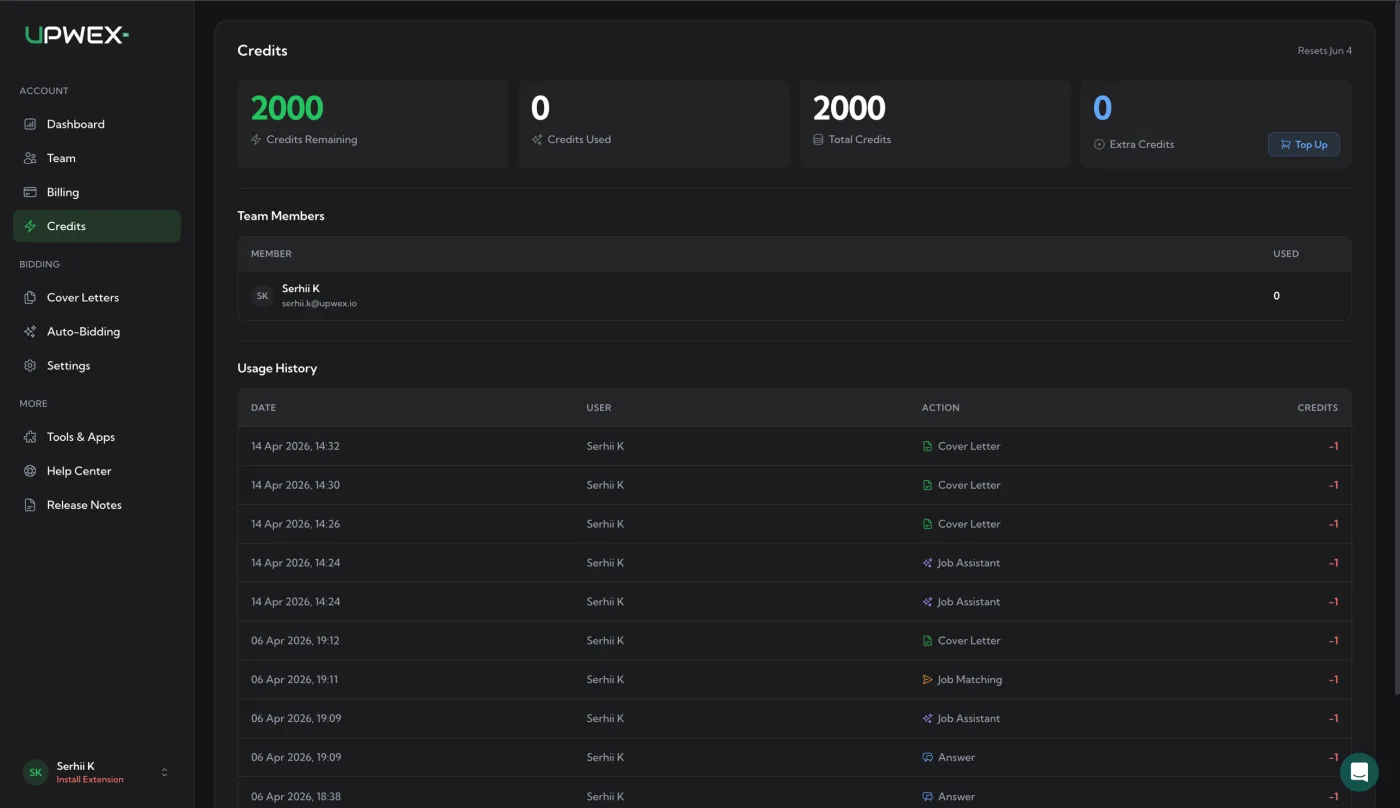
All your balances are visible on the AI Credits page:
- Monthly pool – 50 credits per seat per month, included in your Flex subscription. The pool resets on every billing renewal, and unused pool credits do not carry over to the next month.
- Extra credits – packs you buy with Top Up. They never expire and do not reset. Credits carried over from an old Lite, Pro or Max plan also land here.
- Trial credits – a new account gets a 7-day free trial on Flex with 20 AI Credits in total for the whole trial. They are not given per day and do not reset.
The team shares one pool
Credits are pooled across the team, not locked to individual seats. The pool size is 50 x the number of seats: with 3 seats your team has 150 credits per month in one shared pool. Any team member can spend from it, and there is no per-member quota. If one person has a heavy day of bidding while another is on vacation, the busy one is not blocked by an empty personal balance.
What costs credits
Every AI action in Upwex costs 1 credit. Here is the full list of actions that spend credits:
- AI Cover Letter generation – every time you generate a personalised proposal letter (or regenerate one)
- AI Highlights – when Profile Highlights is set to Auto (AI), the AI picks the best highlights for each proposal; this costs 1 additional credit per proposal and shows up in Usage History as a Highlights entry
- AI Q&A answer – each generated answer to a screening question on a job (a job with 3 questions = 3 credits if you generate them all)
- Check Fit Job Analyzer (0-100 score) – every time you run job-fit analysis (numeric match score, red flags, budget verdict, recommended approach)
- Quick Apply – counts every generation it triggers (cover letter + each Q&A answer), so a job with 2 screening questions = 3 credits per Quick Apply
- Proposal Autofill – the same rule as Quick Apply: 1 credit per cover letter + 1 per Q&A answer it fills in for you
- Auto-Bidding match scoring – every job the scanner evaluates against your match prompt, whether or not it ends up being submitted
- Auto-Bidding submission – every job the scanner submits a proposal to in your name (covers the cover letter + answers it generates for that submission)
- Prompt templates – improving, generating or testing custom prompt templates in the Prompt Library costs 1 credit per operation
Using your own AI key instead of credits
On a paid Flex subscription you can connect your own OpenRouter API key. AI generation then runs on your OpenRouter balance and does not use Upwex AI Credits, so there is no credit limit from Upwex. You pay OpenRouter directly.
- Create a key at openrouter.ai (Settings -> Keys) and top up your balance there.
- In Upwex open Tools & Apps (or the OpenRouter key card on the Billing page) and click Connect.
- Paste the key and click Validate & Save Key. Upwex checks the key with OpenRouter before saving it.
The key is stored encrypted, and Upwex only shows its last 4 characters (****1234). The card shows the key status: Active (green), Invalid or No balance (red). To replace the key click Update; to remove it use the trash icon on the Tools & Apps card.
If the key stops working or runs out of OpenRouter balance, AI automatically falls back to your plan credits, and a red banner appears with an Update button so you can fix the key. Actions served on your own key show in Usage History with an Own AI key badge and do not use credits.
The own key is not available during the free trial. It becomes available once you subscribe to Flex.
Where to monitor your balance
- Extension popup – open the Upwex Chrome extension popup and you’ll see a progress bar at the top showing used / total AI credits. It is color-coded so you know when to top up.
- AI Credits page hero – account.upwex.io/credits opens with four hero cards: Credits Remaining (green), Credits Used, Total Credits (your monthly pool) and Extra Credits (with a Top Up button next to it).
- Billing page – the Credits card on Billing shows the pool balance (for example 50 / 50), the reset date and a Top Up button.
- Team Members table – lower on the AI Credits page. Lists every team member with their credit usage for the current billing period, so you can see who is using the pool and on what.
- Usage History – a paginated log of every credit transaction: date, user, action type (colored badge), credits spent or added, and source (pool / extra / trial / bonus). Actions that ran on your own OpenRouter key carry the Own AI key badge, and credits moved from an old plan appear as Credits carried over (+N, green).
When credits reset
The monthly pool resets on your billing renewal date, not on the 1st of the calendar month. The exact date is shown on the AI Credits page and on the Credits card on the Billing page (“Resets [date]”).
Pool credits do not roll over. If your team has 2 seats (100 credits) and uses 80 before the renewal, the remaining 20 are gone and the new month starts with a fresh 100. Extra credits work the other way: they never reset and never expire.
Trial credits do not reset either. The 20 credits cover the whole 7-day trial.
If you had a Lite, Pro or Max plan
Older Lite, Pro and Max plans keep working as before. When you switch to Flex, the unused credits from your old plan move to your extra balance and never expire. You’ll see this in Usage History as Credits carried over (+N, green). After the switch your monthly pool becomes 50 credits per seat. The switch itself is described in Switch to Flex or change your billing period.
Buying extra credits
You can buy a credit pack any time with Top Up on the AI Credits page. Top Up requires an active subscription. There are six packs:
- 100 credits – $5.99
- 250 credits – $14.49
- 500 credits – $27.99
- 1000 credits – $54.99
- 2500 credits – $134.99
- 5000 credits – $264.99
Purchased credits go to your Extra Credits balance and never expire. Detailed steps are in the Top up AI Credits article.
Frequently asked
- Do credits roll over month to month? Pool credits – no. Extra credits (top-ups and credits carried over from an old plan) – yes, they never expire.
- Are credits per member or shared? Shared across the entire team in one pool of 50 credits per seat.
- Can I refund unused credits? No, credits don’t have a separate refund flow. If you cancel your subscription, unused pool credits expire at the end of the current billing period. Extra credits stay in your account until used.
- Do I need a higher plan for Auto-Bidding? No. Flex is the only plan and includes every Upwex feature, including the 24/7 Auto-Bidding scanner. See Pricing plan overview.
- Does my own OpenRouter key use credits? No. Actions served on your key are marked Own AI key in Usage History and do not use credits. If the key fails, AI falls back to your credits until you update the key.
- Why did Upwex deduct two credits for one job? Different actions on the same job count separately. Generating a cover letter (1 credit) and running Check Fit Job Analyzer (1 credit) on the same listing = 2 credits total.
Related articles
- Top up AI Credits – step-by-step purchase flow
- AI credits running out too fast – how to find what is using your credits
- Pricing plan overview – what Flex includes
- Switch to Flex or change your billing period – moving from an old plan to Flex
- Connect your own OpenRouter AI key – use your own AI key instead of Upwex credits