


Cancelling your Upwex subscription is a two-click action from the Pricing Plans page, with a clear safety net: your current plan stays fully active until the end of the current billing period. There’s no instant lockout, no proration, no refund – you just won’t be charged on the next renewal date, and after that date your team loses access to paid features.
Where the Cancel link lives
Open account.upwex.io/plans (or click Switch on the Plan card of the Billing page). On a paid Flex plan the Flex card has a green Current Plan badge and the Manage Team and Connect Key buttons (the key button shows your key status once a key is connected). Just below them you’ll see a small grey link: Cancel Plan.
If you are still on an older Lite, Pro or Max plan, it is shown as a Your current plan strip above the Flex card, and the Cancel plan link is on that strip.
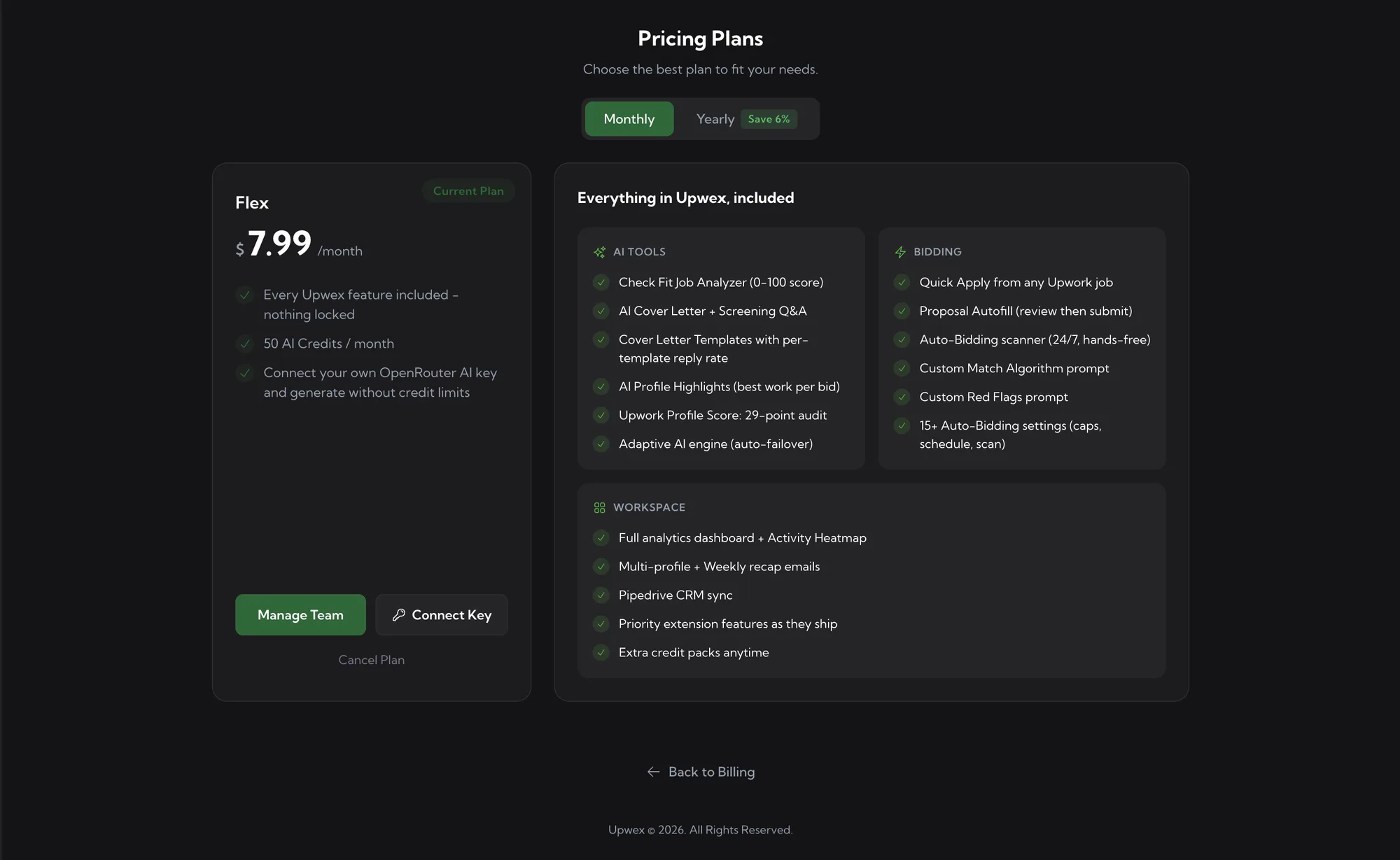
The link is intentionally low-key, so that cancelling can’t happen by a stray click.
The confirmation modal
Click Cancel Plan. Upwex opens a small confirmation modal with a red warning triangle:
- Title – Cancel Subscription
- Body – “Your [Plan] plan will remain active until the end of the current billing period. After that, your team will lose access to paid features.”
- Keep Plan – grey outline button. Click to back out; nothing changes.
- Cancel Plan – red button. Click to confirm cancellation.
Behind the scenes, confirming the cancellation flips a single flag on your Stripe subscription (cancel_at_period_end: true). The subscription itself isn’t deleted – it’s scheduled to end on the next renewal date.
What changes immediately after you confirm
The cancellation is recorded right away, but no features are revoked. Two things change in the UI to make the new state visible:
Pricing Plans page
- The Current Plan badge on your card turns into a red Canceling pill.
- The Cancel Plan link is replaced by red text Cancels on [date] showing exactly when the subscription will end.
- Manage Team stays active – you can still add or remove seats.
Billing page
- The PLAN hero card displays a red Canceling badge inline next to the plan name.
- The subtitle changes from “Renews [date]” to “Cancels [date]”.
- The green button changes from Switch to View Plans (the page it opens is the same; the label just signals that switching now is no longer the recommended path).
- SEATS, CREDITS, Payment History, and Payment Details all stay exactly as they were. You keep full access to everything.
What stays the same during the grace period
Until the cancellation date, your team is identical to a fully-paying team:
- Every Flex feature still works: Check Fit job analyzer, AI Cover Letter + Screening Q&A, Cover Letter Templates with reply rate, the full analytics dashboard, Quick Apply, Proposal Autofill, and the 24/7 Auto-Bidding scanner with the Custom Match Algorithm and Custom Red Flags prompts.
- The AI Credit pool behaves normally: members can keep spending plan credits, you can still buy top-ups, and the next reset (if it happens before the cancellation date) refills the pool.
- Past invoices stay on the Payment History table forever – cancellation doesn’t delete them.
- Card on file and billing details stay on Stripe. Edit them at any time from Payment Details.
What happens on the cancellation date
On the renewal date that’s now your end date, Stripe stops billing and sends a webhook to Upwex. Several things flip at once:
- Subscription becomes inactive. Your billing_status changes to canceled; you no longer have an active subscription.
- Paid features are gated off. The 24/7 Auto-Bidding scanner stops, Quick Apply / Proposal Autofill / cover-letter generation / Check Fit Job Analyzer / Q&A all return “subscription required” errors. The extension and the Account UI gracefully degrade.
- Plan AI Credits become unreachable. Your plan credit pool is frozen at the database level – even if there were unused credits, you can’t spend them without an active subscription.
- Top-up Extra Credits stay in your account. They’re not tied to subscription status – when you re-subscribe, they’re immediately spendable again.
- Team members stay on the team. Nobody is removed automatically. They just can’t use paid features.
- All your data is preserved – Performance Analytics history, prompt library, Auto Bid history, Pipedrive connection settings, Cover Letter templates, Team membership, profile syncs. Re-subscribing puts everything back exactly as it was.
Before you cancel
Upwex now has one plan, Flex, so there is no cheaper tier to downgrade to. If the goal is a lower bill, look at your seats first. Flex is priced per seat ($7.99 per seat per month), so removing members you no longer need on the Team page lowers the total from the next renewal – see How team seats work. Yearly billing ($89.99 per seat per year) also costs a bit less than paying month by month.
If you are still on Lite, Pro or Max, switching to Flex costs less and keeps every feature. The switch happens right away with a prorated charge, and unused credits from your old plan move to your extra balance, where they never expire. See Switch to Flex or change your billing period.
Permanent account deletion
Cancelling doesn’t delete your account or its data – it just ends the paid subscription. If you want a full GDPR-style data erasure (account closed, history removed, profile data wiped), email support@upwex.io with the request.
Who can cancel
Only Owner and Admin roles can see and use the Cancel Plan link. Members don’t have access to the Billing or Pricing Plans pages at all – both are hidden from their sidebar.
Related articles
- Switch to Flex or change your billing period – moving from Lite, Pro or Max to Flex, or switching between monthly and yearly billing
- Pricing plan overview – what Flex includes and what it costs
- Understanding AI Credits – what happens to credits when a subscription ends
- Edit billing information (including VAT) – manage card and invoice details